
Learn · Everyday know-how · Lesson 2 of 6
Show the labels you need
You willShow or hide labels by type, and let Plotlay thin them out as you zoom, so a busy plan stays readable.
Time2 min
Why it mattersA fitted-out house can carry hundreds of names and sizes. Hiding the ones you don’t need makes the plan readable again.
Try it in Plotlay → Opens an example project with this lesson beside it. Nothing to install.
Steps
- Open a busy plan, such as the Showroom. Choose Labels on the left toolbar (the T with a small t, under History).
- Untick the types you don’t need, such as Item names or Measurements. All and None switch every type at once.
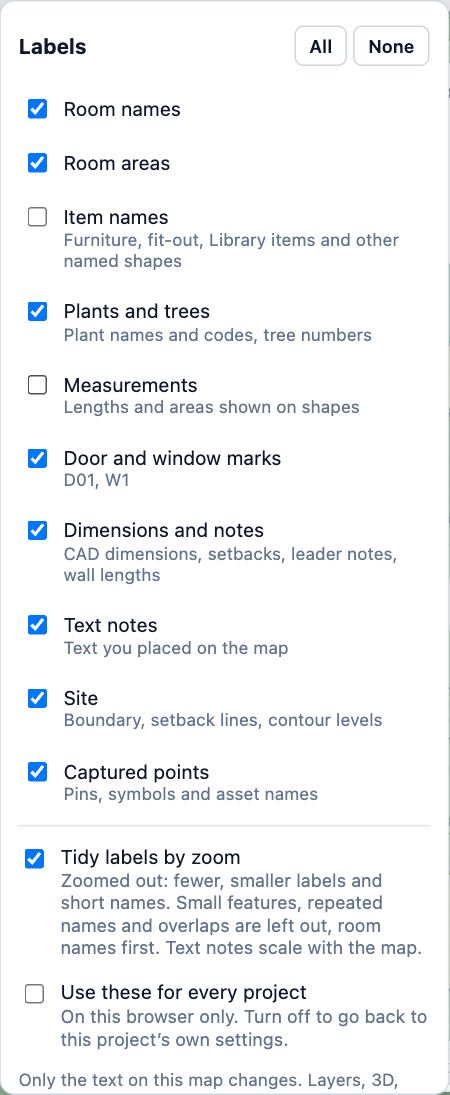
- Keep Tidy labels by zoom ticked. Zoomed out, labels get smaller and use short names, and small features, repeats and overlaps are left out. Zoom in and they come back.
- Tick Use these for every project to keep the same choice in every project on this browser.
- Choose anywhere on the map, or press Esc, to close the list. The Labels button looks lighter while some types are hidden.
Tips
- Only the labels on screen change. Drawing sheets, exports, the 3D view and layers keep their own label settings.
- Setback figures not showing? Tick Dimensions and notes.
Common mistakes
- Hiding a layer to get rid of its labels: that hides the shapes too, on the plan and in 3D. Hide the label type instead.
- Turning Tidy labels by zoom off on a big site: every label then shows at every zoom and they pile on top of each other.
Words in this lesson
- Layer
- A group of things in a project, listed in the Layers tab. A hidden layer is left out of the plan, 3D and documents until you show it again.
Related lessons
Fix common problemsFind out why something is missing, cluttered, the wrong size or not responding, and put it right.4 minDimension the setbacksAdd a dimension from the house to each side of the site boundary, and read the distances.2 minSwitch workspacesBring forward the tools for site, building, capture or documents work.1 min
Steps checked in the app on 14 October 2026.