
Learn · Getting started · Lesson 4 of 6
Switch workspaces
You willBring forward the tools for site, building, capture or documents work.
Time1 min
Try it in Plotlay → Opens an example project with this lesson beside it. Nothing to install.
Steps
- Open a project. The workspace switch is in the top bar: Site, Building, Capture and Documents. On a narrower screen it shows only their icons: hover over one for its name.
- Choose Site for the block: Site details, Carport, Plants, Setbacks and Compliance.
- Choose Building for the house: Room, Walls, Door / window, Finishes, Elevations and Schedules.
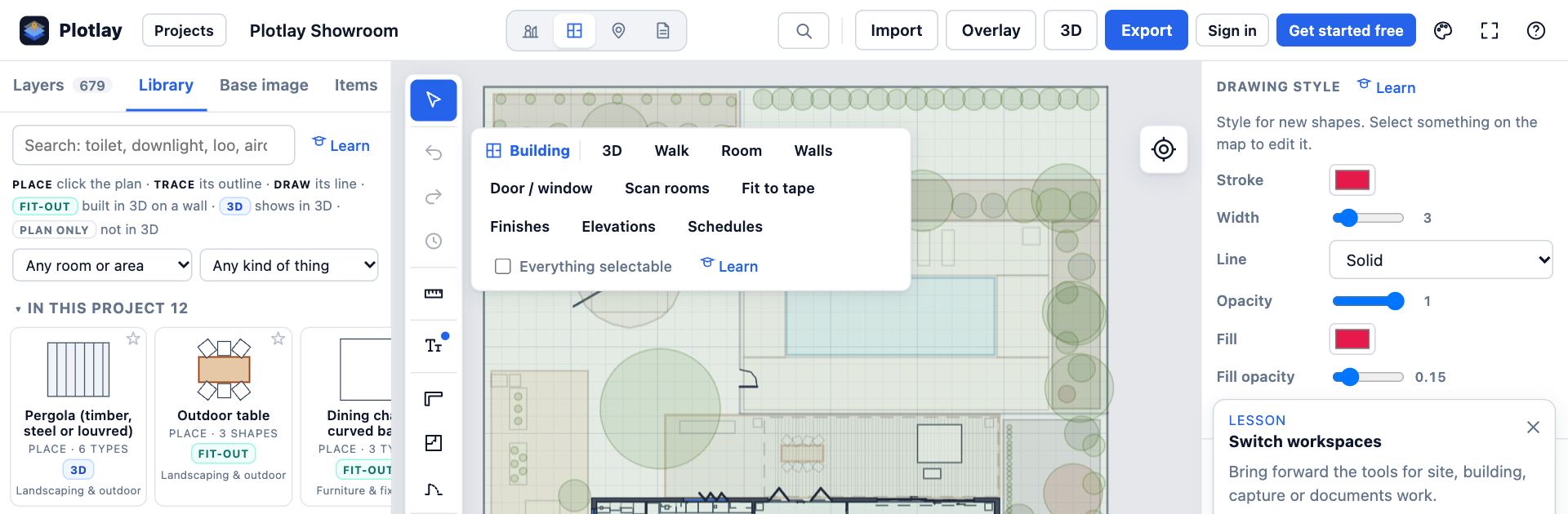
- Choose Capture for site visits: Start GPS, Work list, Request a scan and Forms.
- Choose Documents to Make a document and see Your documents. Alt+1 to Alt+4 switch from the keyboard.
Tips
- A workspace only changes which tools come first. Nothing in the project is hidden or lost.
Common mistakes
- Looking for a tool that is in another workspace: search for it with Ctrl+K instead, which finds every tool from anywhere.
Related lessons
Find anything with searchFind any tool, task, Library item, setting or how-to by typing what you want.1 minDraw a room to sizeDraw a room by clicking its first corner and typing each wall length, then name it.3 minCapture a GPS point on siteSave a point where you stand, with its accuracy, time and a name.3 min
Steps checked in the app on 14 October 2026.