
Learn · Homeowners and renovators · Lesson 2 of 6
Draw a room to size
You willDraw a room by clicking its first corner and typing each wall length, then name it.
Time3 min
Try it in Plotlay → Opens Plotlay with this lesson beside it. Nothing to install.
Steps
- On the dashboard, choose Draw a room. A blank plan in metres opens with the Room tool on.
- Click where the first corner goes.
- Move the pointer the way the first wall runs, type its length (4.2) and press Enter. Plotlay keeps the walls square while Square (90°) is chosen.
- Do the same for each wall. Leave out the last one and press Enter to close the room.
- Type a name in Name this room (Bedroom) and choose OK. The room shows its area on the plan, and its area and perimeter in the panel on the right.
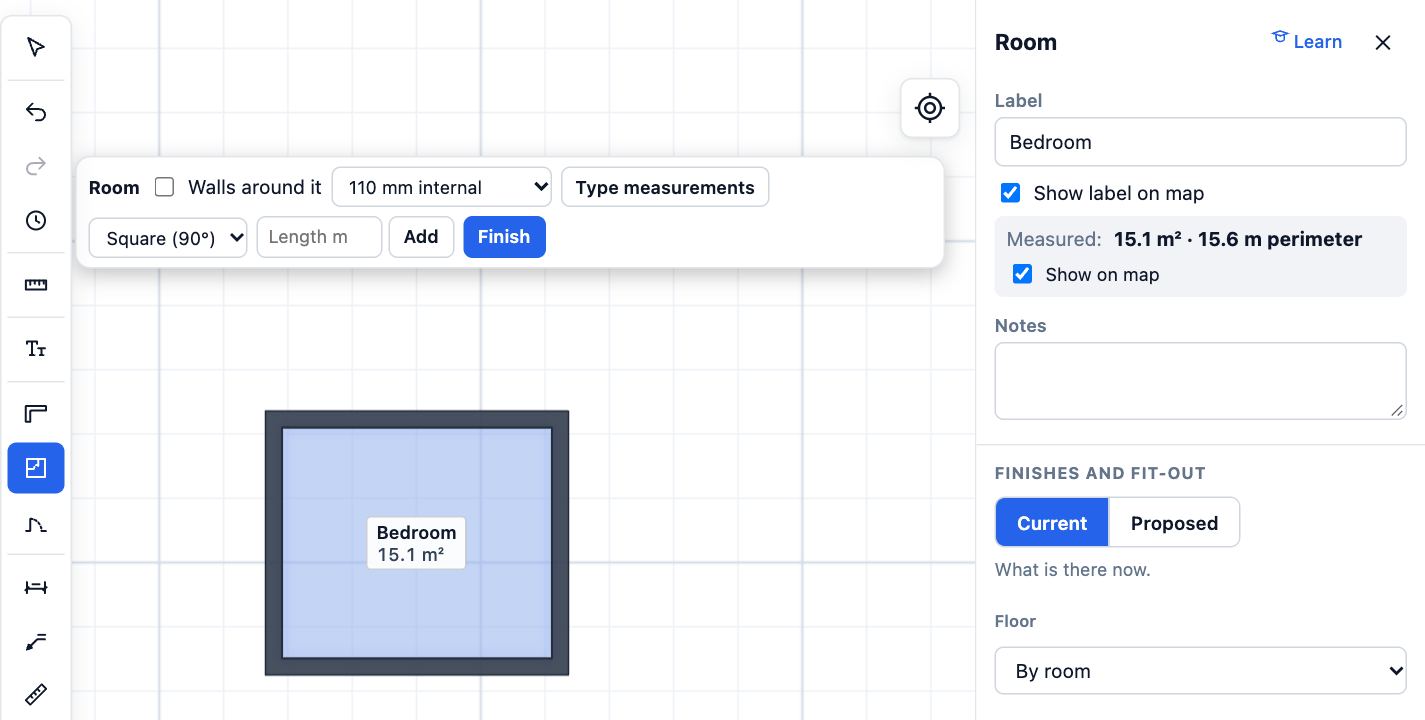
- Tick Walls around it before you start to draw the walls at the thickness you pick.
Tips
- You can also type in the Length m box on the Room bar and choose Add.
- Backspace takes back the last corner; Esc stops.
Common mistakes
- Typing before moving the pointer: the length goes the way the pointer points, so move it first.
- Clicking corners by eye when you have measurements: type the lengths, they are exact.
Related lessons
Measure a room and type it inTurn tape measurements of a room into a room on the plan, with its area and perimeter.4 minDraw walls, then add doors and windowsDraw walls of a set thickness to size, then put doors and windows in them and set their type.4 minWalk through your plan in 3DTurn the plan into a 3D model, walk through it at eye height and save a picture.3 min
Steps checked in the app on 14 October 2026.