
Learn · Getting started · Lesson 3 of 6
Start, name and manage projects
You willStart a plan, give it a name, then duplicate or delete it from your project list.
Time2 min
Try it in Plotlay → Opens Plotlay with this lesson beside it. Nothing to install.
Steps
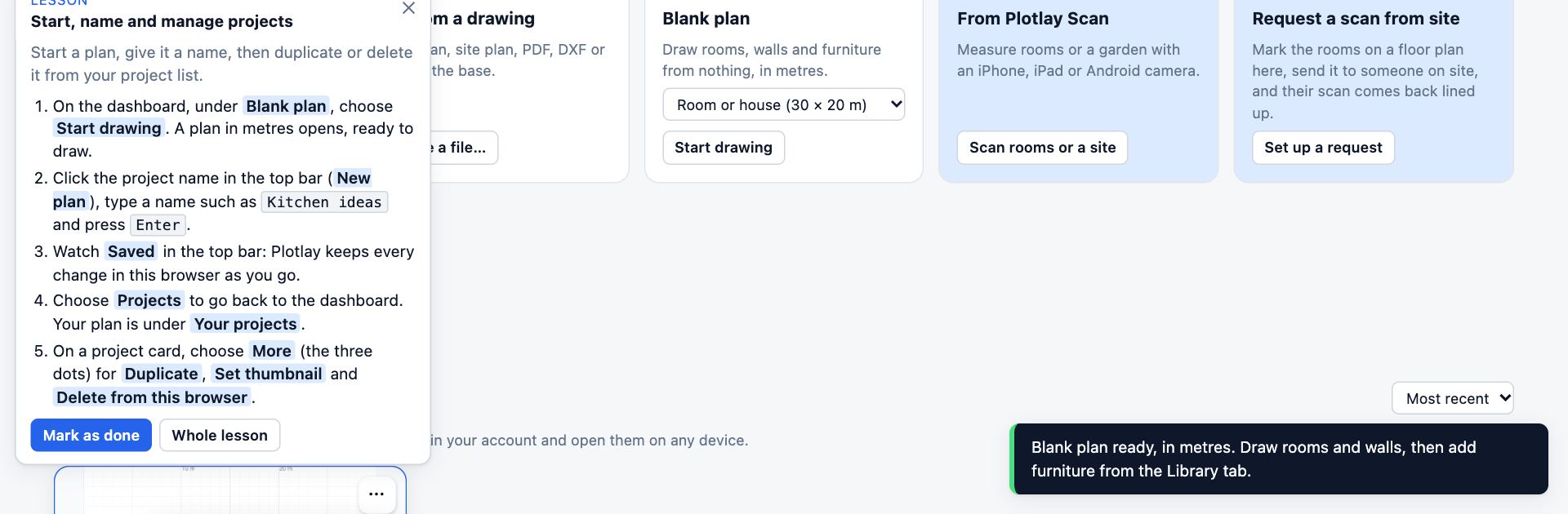
- On the dashboard, under Blank plan, choose Start drawing. A plan in metres opens, ready to draw.
- Click the project name in the top bar (New plan), type a name such as Kitchen ideas and press Enter.
- Watch Saved in the top bar: Plotlay keeps every change in this browser as you go.
- Choose Projects to go back to the dashboard. Your plan is under Your projects.
- On a project card, choose More (the three dots) for Duplicate, Set thumbnail and Delete from this browser.
Tips
- Sign in to keep projects in your account as well, so they open on any device.
- Use Duplicate before trying a big change, or save a restore point (see the undo lesson).
Common mistakes
- Clearing the browser’s site data deletes projects that are only in this browser. Sign in, or export a project file, to keep a copy.
- A private window forgets everything when it closes.
Related lessons
Find your way round the dashboardKnow where to start a job, continue a project, open an example or get help.1 minUndo, redo and go back in HistoryTake back a mistake, or return the project to an earlier point.2 minPlans and limitsKnow what each plan includes, what sharing it pays for, and where to change plan.3 min
Steps checked in the app on 14 October 2026.