
Learn · Getting started · Lesson 6 of 6
Undo, redo and go back in History
You willTake back a mistake, or return the project to an earlier point.
Time2 min
Try it in Plotlay → Opens Plotlay with this lesson beside it. Nothing to install.
Steps
- Draw something on the plan, such as a rectangle: choose Rectangle, then click two opposite corners.
- Choose Undo (the curved arrow on the left toolbar), or press Ctrl+Z (Cmd+Z on a Mac). Redo or Ctrl+Shift+Z brings it back.
- Choose History (the clock) to see every change since you opened the project, newest first.
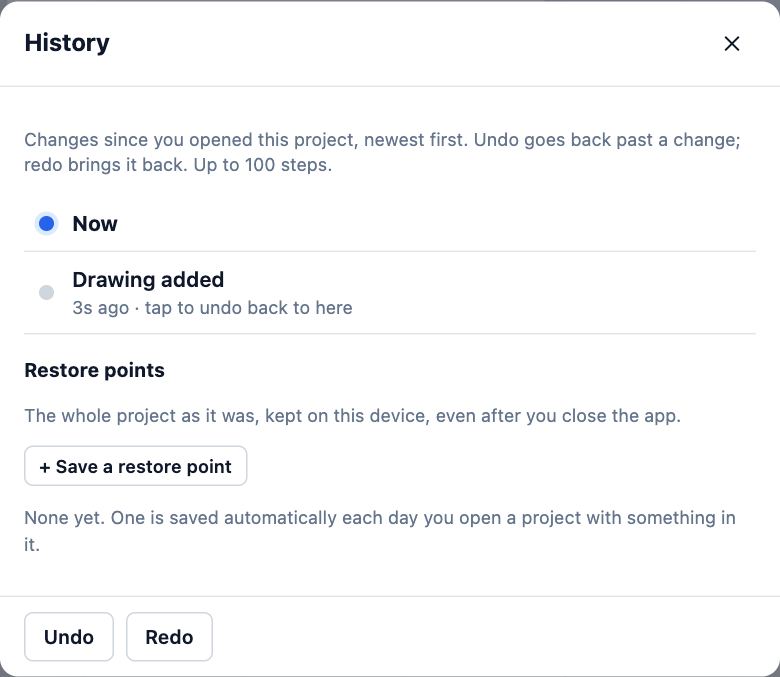
- Click a change in the list to undo back to that point. Now returns you to the latest.
- Under Restore points, choose + Save a restore point before a big change. It is kept on this device even after you close Plotlay.
Tips
- Plotlay saves a restore point by itself each day you open a project with something in it.
Common mistakes
- Expecting undo to reach past closing the project: the change list starts when you open it. Use a restore point for that.
Related lessons
Start, name and manage projectsStart a plan, give it a name, then duplicate or delete it from your project list.2 minFind anything with searchFind any tool, task, Library item, setting or how-to by typing what you want.1 minDraw a room to sizeDraw a room by clicking its first corner and typing each wall length, then name it.3 min
Steps checked in the app on 14 October 2026.