
Learn · Getting started · Lesson 2 of 6
Find your way round the dashboard
You willKnow where to start a job, continue a project, open an example or get help.
Time1 min
Try it in Plotlay → Opens Plotlay with this lesson beside it. Nothing to install.
Steps
- The dashboard opens when you start Plotlay. To come back to it from a project, choose Plotlay (the logo, top left).
- What do you want to do? lists the common jobs, such as Draw a room or Capture a GPS point. Each one opens what it needs and shows the steps.
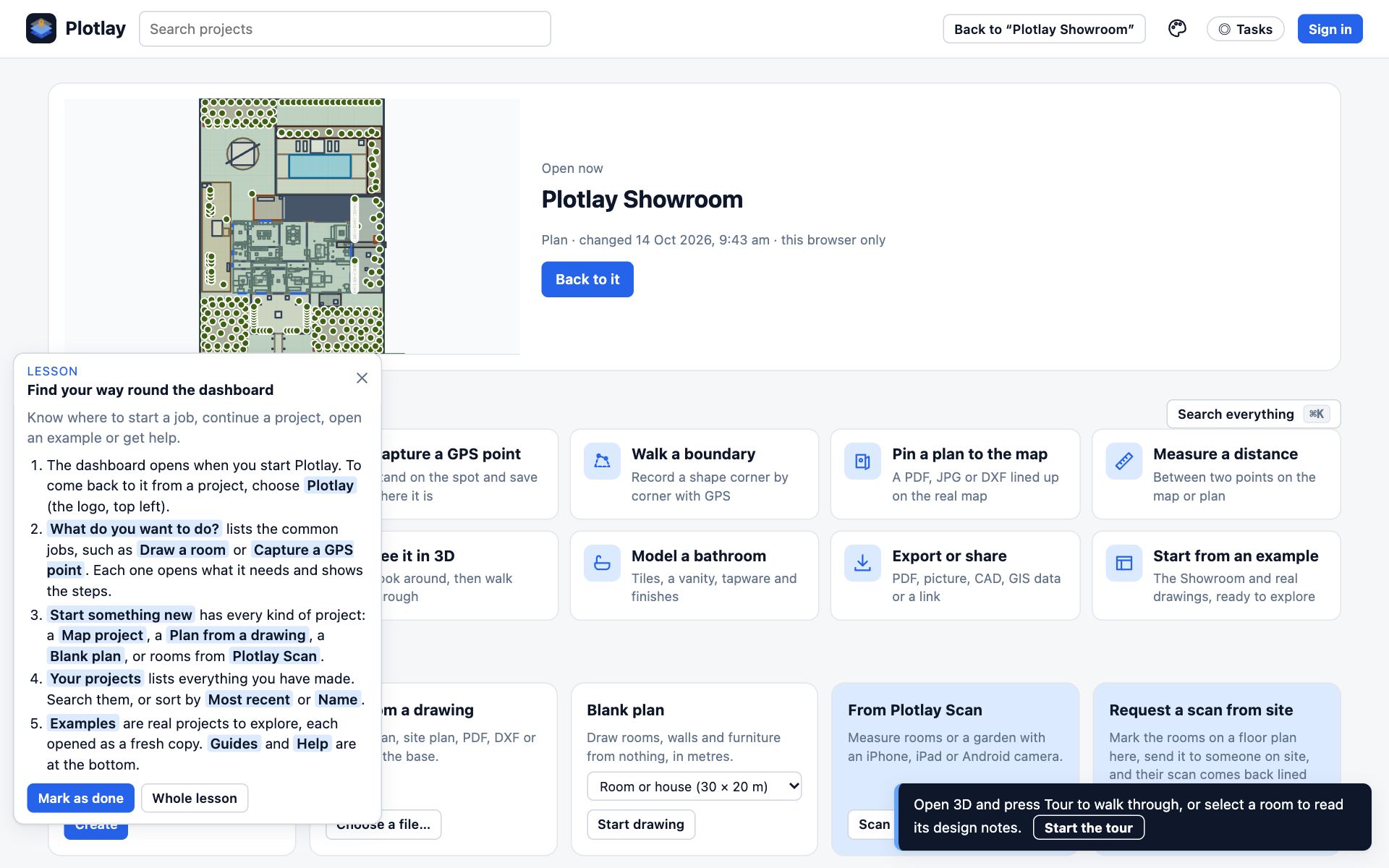
- Start something new has every kind of project: a Map project, a Plan from a drawing, a Blank plan, or rooms from Plotlay Scan.
- Your projects lists everything you have made. Search them, or sort by Most recent or Name.
- Examples are real projects to explore, each opened as a fresh copy. Guides and Help are at the bottom.
Tips
- Esc on the dashboard takes you back to the project you had open.
Common mistakes
- Looking for a File menu: there isn’t one. Projects save themselves as you work, and Saved in the top bar says so.
Related lessons
Start, name and manage projectsStart a plan, give it a name, then duplicate or delete it from your project list.2 minFind anything with searchFind any tool, task, Library item, setting or how-to by typing what you want.1 minTake the Showroom tourWalk through a finished design in 3D, stop by stop, and see what Plotlay can make.3 min
Steps checked in the app on 14 October 2026.