
Learn · Getting started · Lesson 1 of 6
Take the Showroom tour
You willWalk through a finished design in 3D, stop by stop, and see what Plotlay can make.
Time3 min
Try it in Plotlay → Opens an example project with this lesson beside it. Nothing to install.
Steps
- On the dashboard, under Examples, choose Showroom: walk through design ideas. It opens as your own copy, so nothing you do can break it.
- Choose 3D in the top bar.
- Choose Tour. You stand at the first of 21 stops, with a card naming the space, its style and main materials.
- Choose Next to move to the next stop, or Previous to go back. Evening, lights on shows the lighting design.
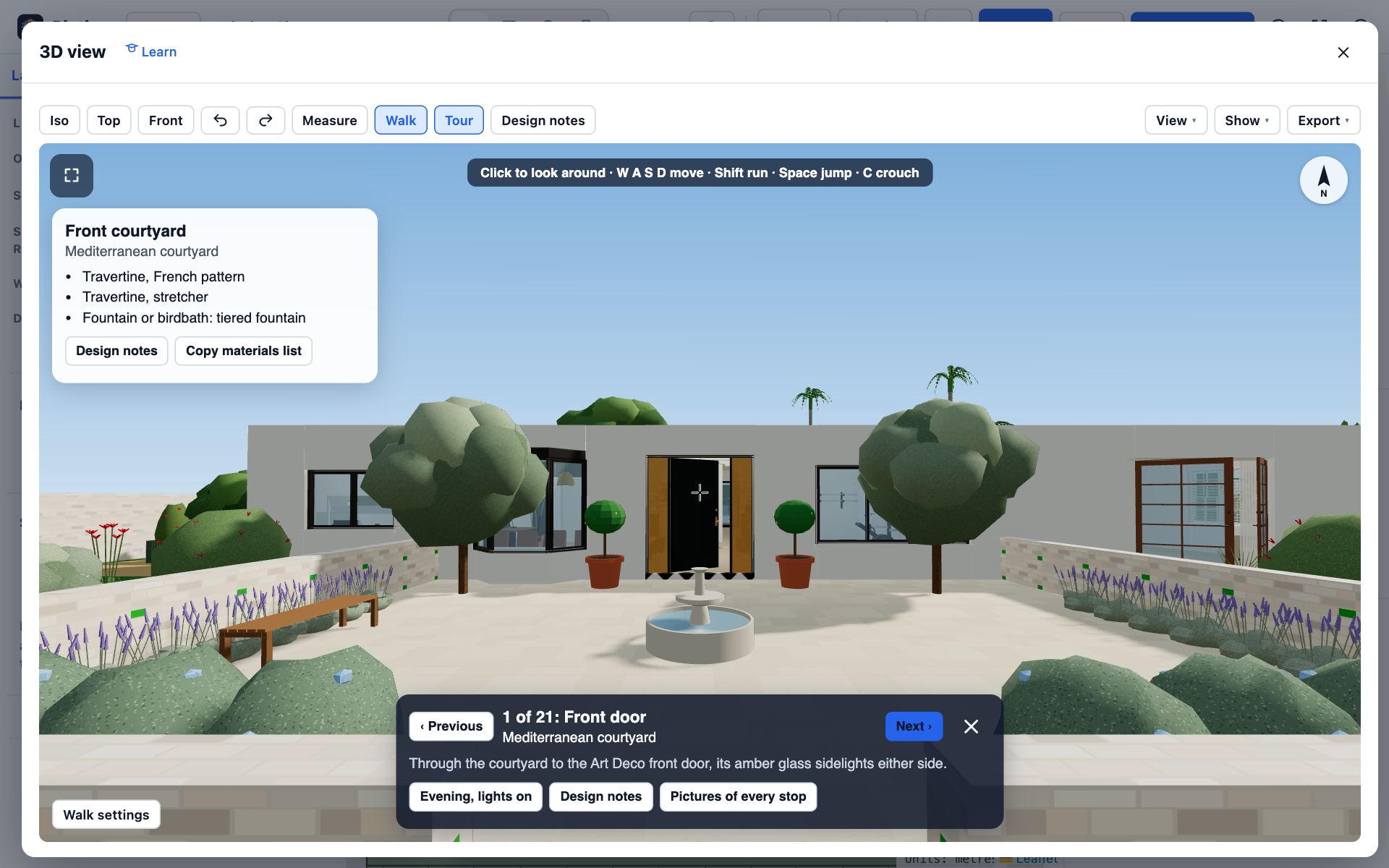
- Click in the view to look around with the mouse, and walk with W A S D. Esc gives you the pointer back.
- Close the 3D view with Close (the cross at the top right), or Esc when you are not looking around, to come back to the plan.
Tips
- Design notes on the tour bar lists the style, materials and fittings of the space you are standing in.
- Select any room on the plan to read its design notes without opening 3D.
Common mistakes
- The keys do nothing: click inside the 3D view first, so it has the keyboard.
- On an older computer the 3D view can be slow. Close other tabs, or turn off Sun in the 3D toolbar.
Related lessons
Walk through your plan in 3DTurn the plan into a 3D model, walk through it at eye height and save a picture.3 minFind your way round the dashboardKnow where to start a job, continue a project, open an example or get help.1 minSwitch workspacesBring forward the tools for site, building, capture or documents work.1 min
Steps checked in the app on 14 October 2026.