
Learn · Clients and guests · Lesson 7 of 7
Accept or decline a quote in a shared project
You willYour client sees the quote’s prices in the project they were shared, accepts or declines it, and you see their answer.
Time3 min
Why it mattersThe answer is recorded against the quote and its revision, so nobody has to dig through emails to find what was agreed.
You needA project in the cloud with a quote, shared with the client as Can comment and pick options. A free account is enough for them.
Try it in Plotlay → Opens an example project with this lesson beside it. Nothing to install.
Steps
- Make the quote (see Send a quote) and set its status to Sent. Its prices are published to the people the project is shared with; a draft never is.
- Share the project with the client by email as Can comment and pick options. A view link shows no quotes.
- The client opens the project. Under Quotes in the panel they see your business, the quote number and revision, the date it is valid until, a price for each section and the Total.
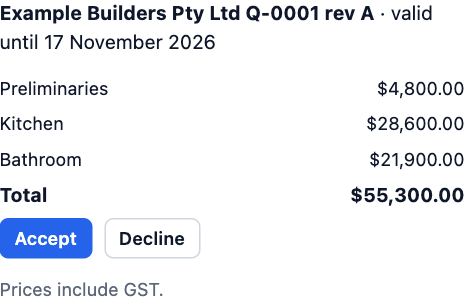
- They choose Accept or Decline. The panel then says You accepted this quote (or declined), and the owner can see the answer.
- In Estimates, open the quote: Responses under Quote details says who accepted or declined and when. Set the status to Accepted or Declined to match.
Tips
- The client sees prices only: never your costs, hours, contingency or margin.
- A new revision is published in place of the old one, so the client always answers the latest.
Common mistakes
- Leaving the quote as a draft: drafts are never shown. Set it to Sent first.
- Expecting the status to change by itself: the client’s answer shows under Responses; you set the quote’s status.
Words in this lesson
- Elevation and section
- An elevation is a side of the house, or a wall from inside, drawn straight on. A section is a cut through the building along a line you place.
- Guest roles
- What a person you invite may do: Can view (look and walk through), Can comment and pick options, or Can edit. Viewers need no account.
- View link
- A link anyone can open to look round a project without an account. It can end after 7 or 30 days, or never, and you can turn it off at any time. A link to a view opens it at one saved view.
- Estimate
- An indicative cost of the project or some rooms, measured from the model and priced line by line, by trade and by room, with a likely range. Not a price: check it with quotes from licensed trades.
Related lessons
Send a quoteTurn an estimate into a numbered quote on your letterhead, with terms, payment schedule and an acceptance block.5 minComment and pick design optionsPick the design option you prefer and leave comments pinned to the place they are about.3 minOpen a project shared with youOpen a link or an invite, look round the plan and 3D, and know what a free account adds.3 min
Steps checked in the app on 18 October 2026.