
Learn · Teams and admins · Lesson 6 of 7
Set where guests start and what they see
You willChoose where a guest or link opens, what they can see, what an editor may change, and the note they read.
Time4 min
Why it mattersPeople land on the room or option you mean, and see only the part of the project that is theirs.
You needA Plotlay account, with the project in your account.
Try it in Plotlay → Opens an example project with this lesson beside it. Nothing to install.
Steps
- Choose Share in the top bar. Starting view sets where the next person you invite, or the next link, starts.
- In They start at, pick The whole project, Where I am looking now, Some rooms (then tick them), The 3D model, A design option set or A document.
- Type a note for them in the box below, such as which options to compare. They see it at the top when they open the project.
- Open Limit what they see or change. Before and after shows them only the current house or the proposal; tick the rooms (the rest are faded), layers, design options and documents they see. For editors, tick the rooms or layers they may change.
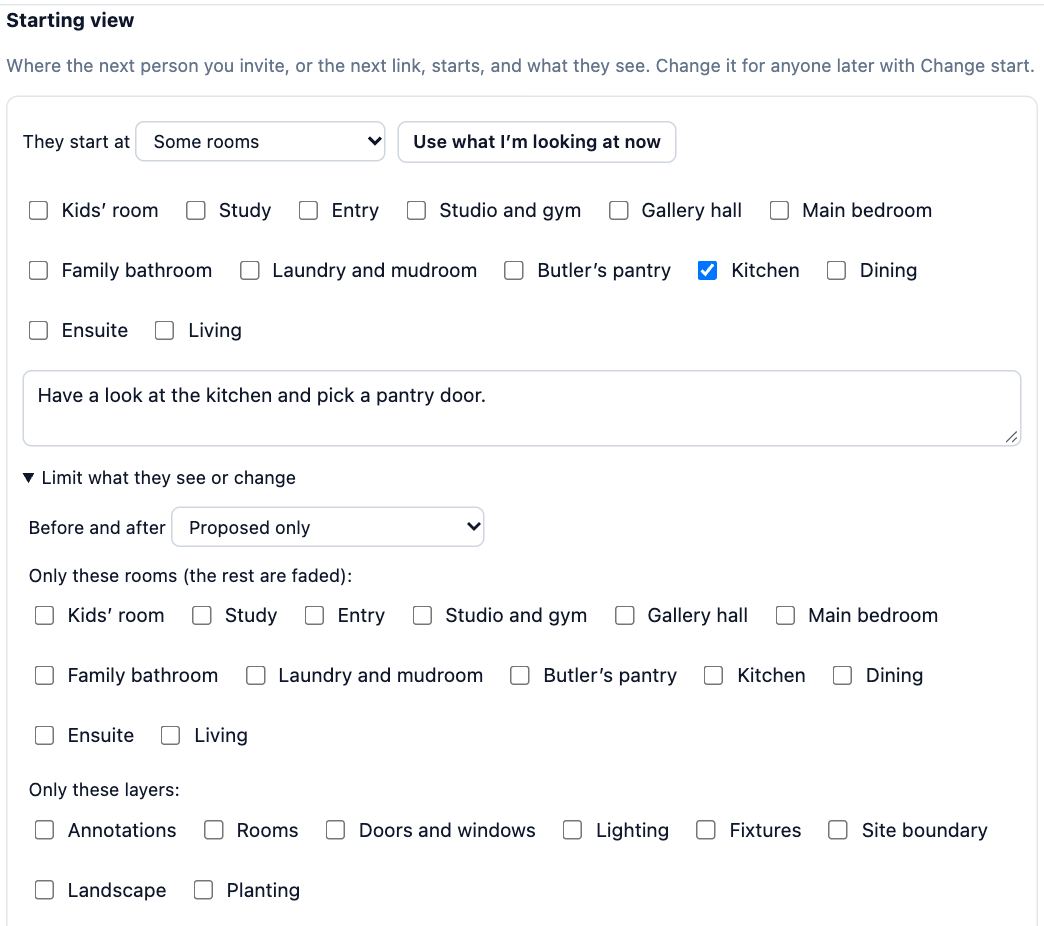
- Read They’ll start here, then choose Preview what they see to open the project as they will. Back to my project ends the preview.
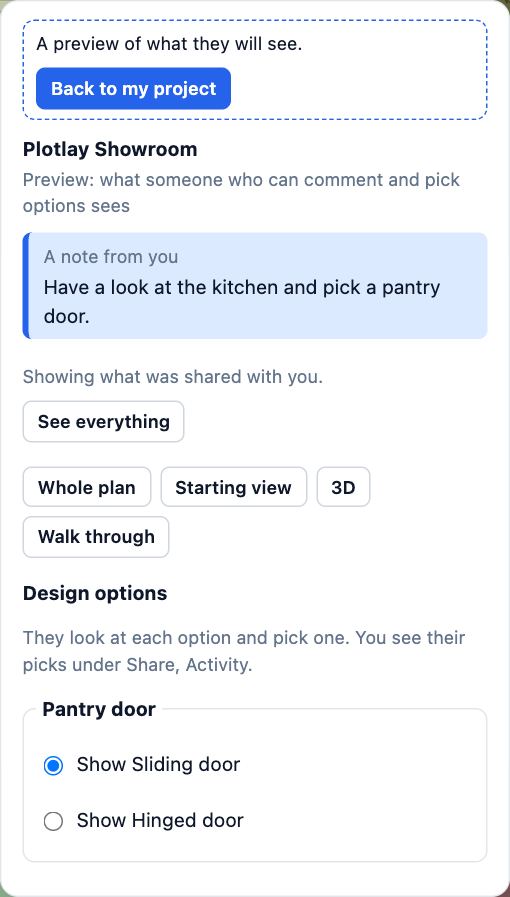
- Invite them or make a link: it takes this starting view. For someone already invited, choose Change start beside them, change it and choose Save.
Tips
- For a particular 3D view, open 3D, set up the view, close it, then choose My last 3D view in They start at. Tick Start walking through to drop them at eye height.
- Guests can choose See everything to look past the limits, so limits keep the view tidy rather than hide secrets. Share a separate project for anything they must not see.
Common mistakes
- Setting the starting view after making the link: it applies to the next invite or link. Use Change start for ones already made.
- Expecting editors to be stopped from every change: changes outside the rooms or layers you ticked are put back by the app, with a note saying why. Untick all of them to let an editor change everything.
Words in this lesson
- Phase (existing, proposed, demolish)
- Whether something is there now and stays (existing), is new work (proposed) or is coming out (existing, to be removed). Plans, 3D and documents show Current, Proposed or Both from it.
- Layer
- A group of things in a project, listed in the Layers tab. A hidden layer is left out of the plan, 3D and documents until you show it again.
- Design option
- One of two or more versions of part of a design, such as two vanities, kept in one project. Only the chosen option shows; clients can pick the one they like.
- Guest roles
- What a person you invite may do: Can view (look and walk through), Can comment and pick options, or Can edit. Viewers need no account.
Related lessons
Share a project with a linkSend a link that opens the project where you want, for as long as you choose.3 minInvite guests to a projectGive one person view, comment or edit access to a single project, and change or end it later.3 minShow a client the designInvite a client to look, walk through and comment, and see exactly what they will see before you send it.4 min
Steps checked in the app on 14 October 2026.