
Learn · Teams and admins · Lesson 5 of 5
Keep sharing under control
You willLimit what people see, end access when a job is done, and see who has been in.
Time3 min
You needA Plotlay account and a project you have shared.
Try it in Plotlay → Opens an example project with this lesson beside it. Nothing to install.
Steps
- Give links an end date: under Links, choose Works for 7 days or Works for 30 days. Each link says when it stops working.
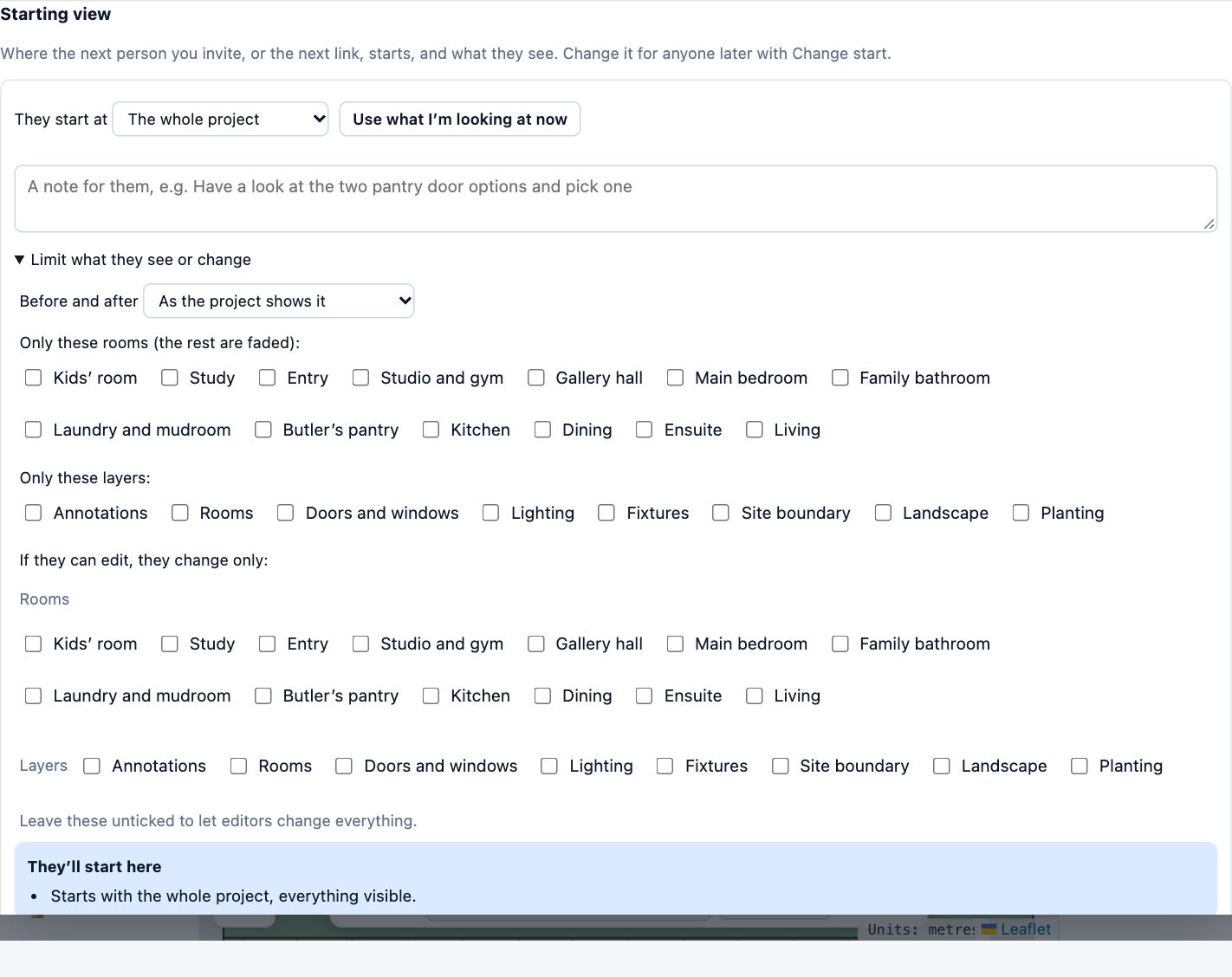
- Under Starting view, open Limit what they see or change to show only some phases, layers or rooms, and to keep editors to the parts you allow.
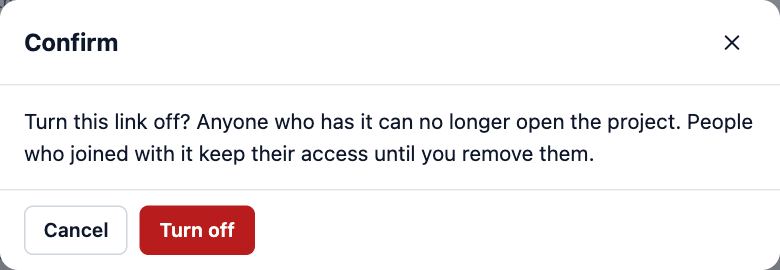
- Choose Turn off on a link you no longer want. It stops working at once; people who joined with it keep their access until you remove them.
- Under Who has access, choose Remove beside a person. Their access ends straight away.
- Check Activity and comments to see the recent changes by person, open comments and design option picks.
Tips
- Projects you have not put in your account stay in this browser, and nobody else can open them.
- Plotlay limits how many invites and emails one account can send in a day, and how often a link can be opened, so a leaked link can’t be hammered.
Common mistakes
- Turning off a link and assuming everyone is out: people who joined through it are guests now. Remove them under Who has access too.
- Sharing the whole project when a client only needs one room: set the starting view and limits first.
Related lessons
Share a project with a linkSend a link that opens the project where you want, for as long as you choose.3 minInvite guests to a projectGive one person view, comment or edit access to a single project, and change or end it later.3 minPlans and limitsKnow what each plan includes, what sharing it pays for, and where to change plan.3 min
Steps checked in the app on 14 October 2026.