
Learn · Teams and admins · Lesson 4 of 5
Share a project with a link
You willSend a link that opens the project where you want, for as long as you choose.
Time3 min
You needA Plotlay account. Free accounts get 1 link per project, lasting 7 days.
Try it in Plotlay → Opens an example project with this lesson beside it. Nothing to install.
Steps
- Open the project and choose Share in the top bar.
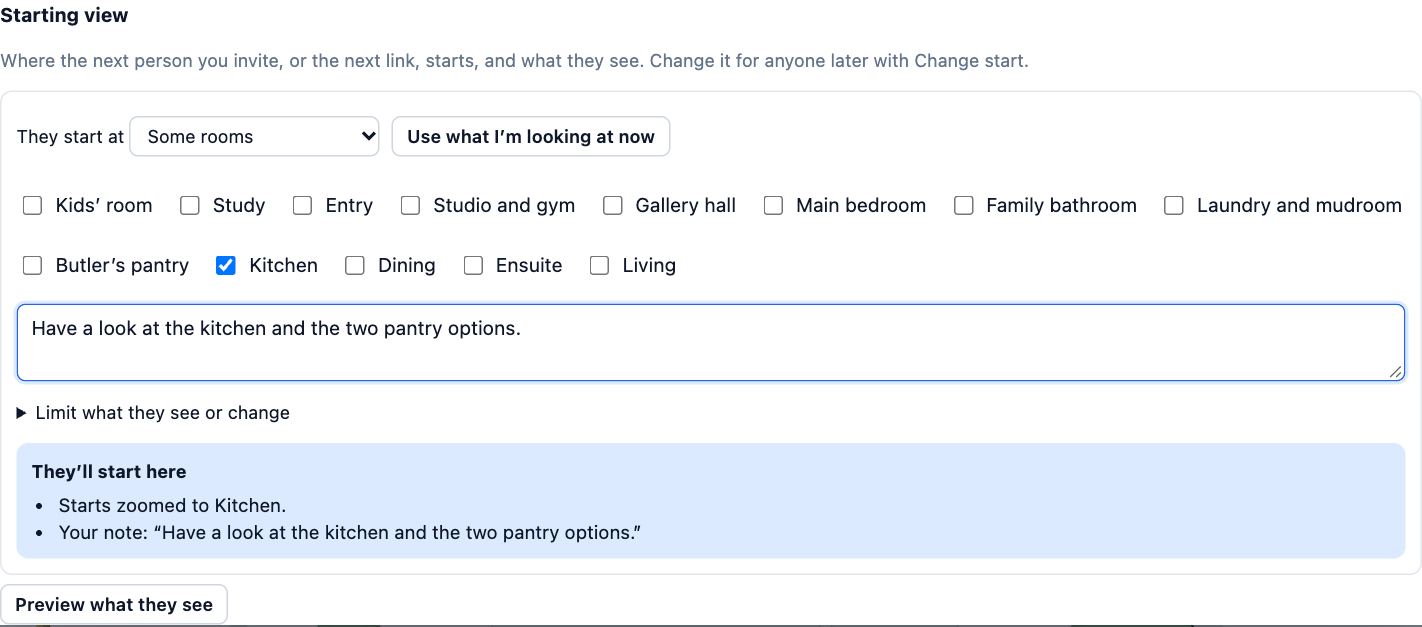
- Under Starting view, choose where they start (The whole project, some rooms, a design option set or a document) and add a note for them.
- Under Links, choose the role, how long it works (Works for 7 days, Works for 30 days or Never expires) and who it is for, such as Builder.

- Choose Make link. The link is copied: paste it into a message or an email.
- Each link is listed with Copy link, Change start and Turn off, and when it was last opened.
- Choose Preview what they see to open the project as they will see it, with your starting view.
Tips
- Anyone with a view link can look without an account. Comment and edit links ask for a free account first.
- The starting view applies to the next invite or link. Change start changes it for someone already invited.
Common mistakes
- Sending the address from your browser bar: that only works for you. Use Make link.
- Choosing Never expires for a one-off look: pick 7 or 30 days, so the link stops working by itself.
Related lessons
Invite guests to a projectGive one person view, comment or edit access to a single project, and change or end it later.3 minKeep sharing under controlLimit what people see, end access when a job is done, and see who has been in.3 minShare your plan with family or a builderSend a link that opens your plan, or a PDF or project file, to people who need to see it.3 minShow a client the designInvite a client to look, walk through and comment, and see exactly what they will see before you send it.4 min
Steps checked in the app on 14 October 2026.