
Learn · Designers and builders · Lesson 9 of 9
Show a client the design
You willInvite a client to look, walk through and comment, and see exactly what they will see before you send it.
Time4 min
You needA Plotlay account (sign in), with the project in your account. Sharing works from the cloud copy.
Try it in Plotlay → Opens an example project with this lesson beside it. Nothing to install.
Steps
- Choose Share in the top bar. (Signed out, Plotlay asks you to sign in first.)
- Under Invite people, type your client’s email address and choose Can comment and pick options, then Invite. They get an email with a link.
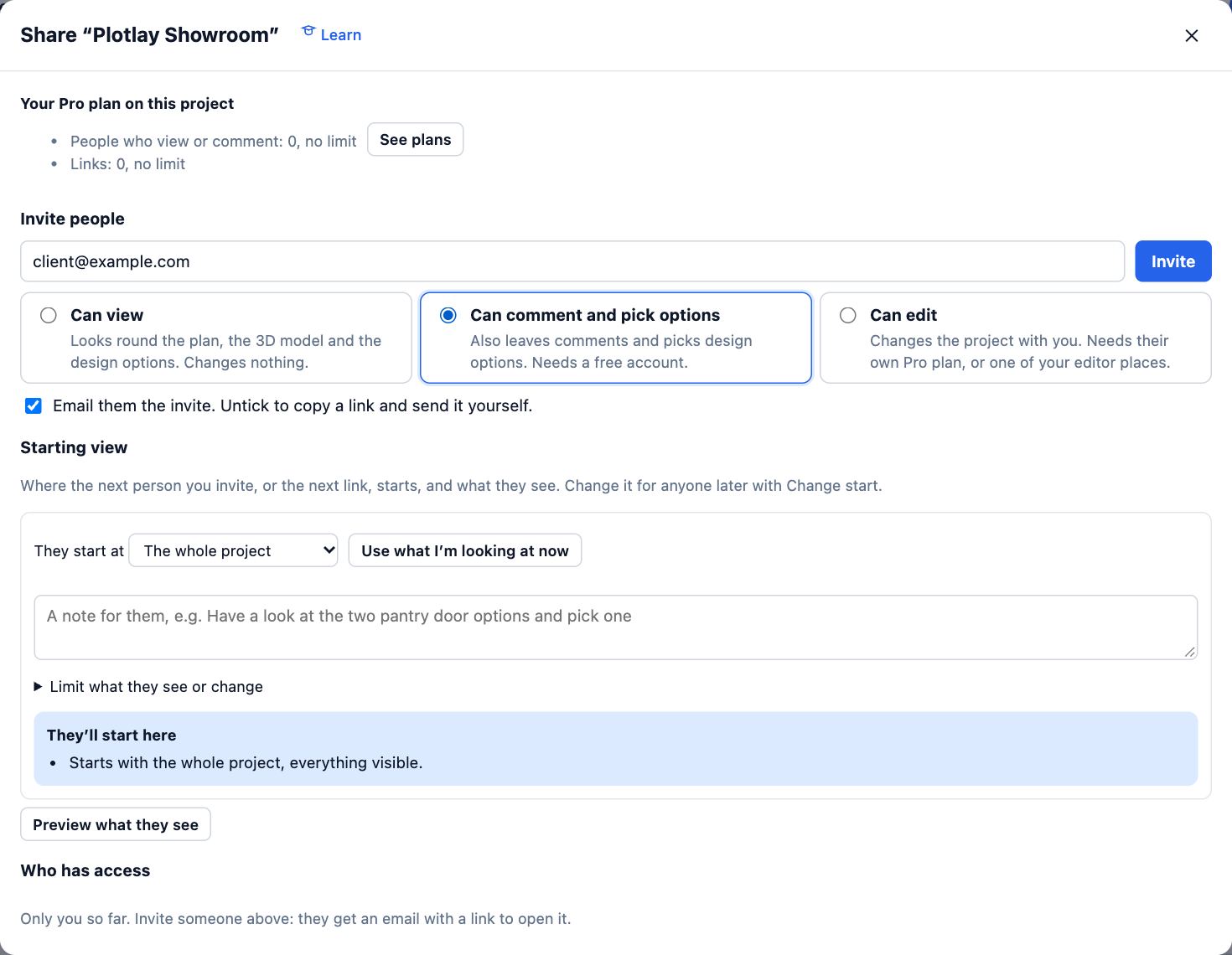
- Under Starting view, choose where they start in They start at: the whole project, some rooms, or the 3D model.
- Choose Preview what they see. The client view opens: the plan with Walk through in 3D and Comments, and none of the editing tools.
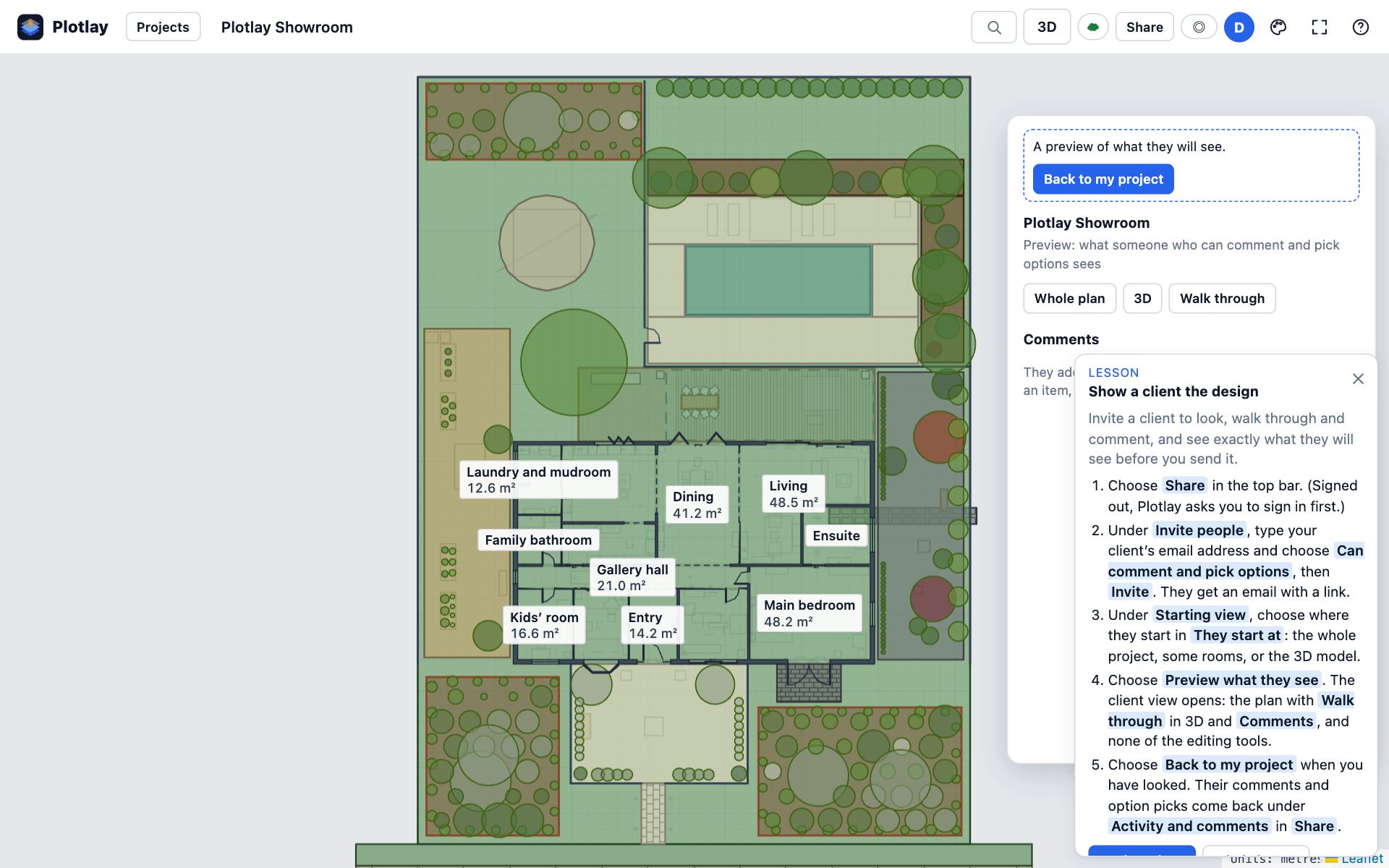
- Choose Back to my project when you have looked. Their comments and option picks come back under Activity and comments in Share.
Tips
- Set up Design options… on a room first: a client who can comment picks the one they like, and you see their pick.
- A client with edit access can take a connected copy, try changes in it and send them back as a proposal. You accept or reject each change.
Common mistakes
- Sending a view link when you wanted feedback: view links can’t comment. Invite them with Can comment and pick options.
- Forgetting the starting view: without one, they land on the whole project and may not find the room you meant.
Related lessons
Share a project with a linkSend a link that opens the project where you want, for as long as you choose.3 minCompare design optionsKeep two versions of a room in one project and show one at a time.4 minInvite guests to a projectGive one person view, comment or edit access to a single project, and change or end it later.3 min
Steps checked in the app on 14 October 2026.