
Learn · Designers and builders · Lesson 8 of 9
Save document settings and make them again
You willKeep a room pack’s settings by name and make the same document again in one click after changes.
Time3 min
Try it in Plotlay → Opens an example project with this lesson beside it. Nothing to install.
Steps
- Set up a room pack as you want it: Make a document, A room pack, then tick the rooms.
- Choose Save these settings as…, give them a name such as Wet area pack, and choose Save.
- Close the dialog. In the Documents workspace choose Your documents: your saved settings are listed (they are also at the top of Make a document).
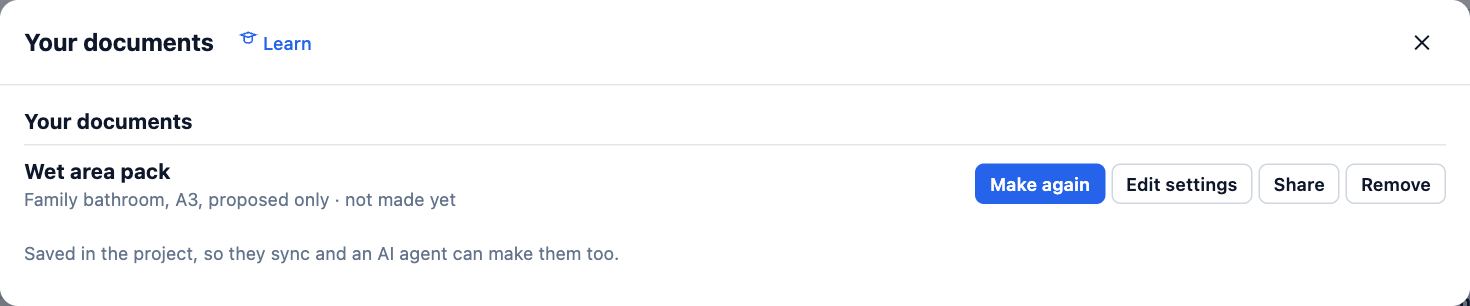
- Choose Make again to make the document on the project as it is now. Edit settings opens them filled in; Remove forgets them.
Tips
- Saved settings are kept in the project, so they sync to your account and the AI connector can make them too.
- Share on a saved document sends a link to the latest one made.
Common mistakes
- Expecting the old PDF to change: Make again makes a new one; earlier documents stay under Documents produced.
Related lessons
Make a room packMake a PDF about chosen rooms: plans at scale, every wall, views inside and the finish and fit-out schedules.4 minIssue a drawing setMake one numbered PDF of plans, elevations, 3D views and schedules with your title block.4 minAsk the connector for plansWrite requests the connector carries out well, then check and adjust its work in the app.4 min
Steps checked in the app on 14 October 2026.