
Learn · Homeowners and renovators · Lesson 5 of 6
Compare design options
You willKeep two versions of a room in one project and show one at a time.
Time4 min
Try it in Plotlay → Opens an example project with this lesson beside it. Nothing to install.
Steps
- Select a room, such as the bathroom. In its panel, under Finishes and fit-out, choose Design options.
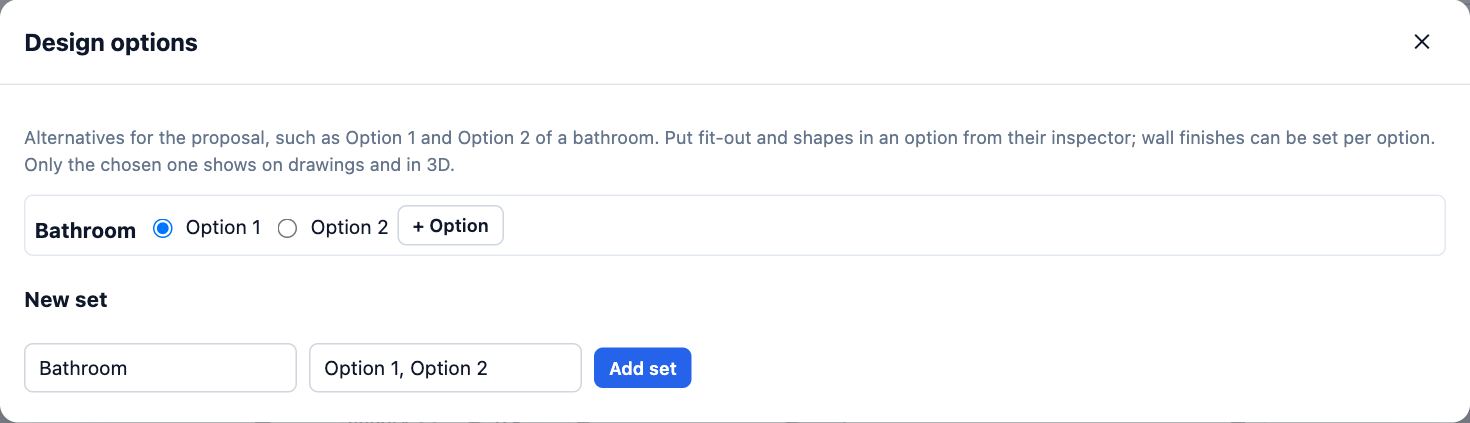
- Under New set, name the set (Bathroom) and its options (Option 1, Option 2), then choose Add set. Close the dialog.
- Select something that belongs to one option, such as the bath. Set its Design option to Bathroom: Option 2.
- Open Design options again and pick Option 1 or Option 2. Only the chosen option shows on the plan, in drawings and in 3D.
- Things left In every option show whichever option is chosen.
Tips
- Wall finishes can be set per option too: Wall finishes by height has a Design option choice once a set exists.
- People you share with can pick the option they like in the shared view, and you see their picks.
Common mistakes
- Putting the room itself in an option: put the things that differ (fit-out, furniture, shapes) in options, and keep the room in every option.
Related lessons
Show the house before and afterMark what is there now and what is new, then switch between the current house and the proposal.4 minChoose finishes and add fit-out to a roomSet a room’s floor tile and paint, and place a fitting such as a towel rail against a wall to the millimetre.5 minShow a client the designInvite a client to look, walk through and comment, and see exactly what they will see before you send it.4 min
Steps checked in the app on 14 October 2026.