
Learn · Teams and admins · Lesson 2 of 5
Invite guests to a project
You willGive one person view, comment or edit access to a single project, and change or end it later.
Time3 min
You needA Plotlay account. The project goes into your account when you share it.
Try it in Plotlay → Opens an example project with this lesson beside it. Nothing to install.
Steps
- Open the project and choose Share in the top bar. If it is only in this browser, Plotlay offers to put it in your account first.
- Under Invite people, type their email address.
- Pick what they can do: Can view, Can comment and pick options or Can edit.
- Leave Email them the invite ticked and choose Invite. Untick it to copy a link and send it yourself.

- Who has access lists everyone. An invite not opened yet has Copy invite link and Cancel invite; Change start sets where that person starts.
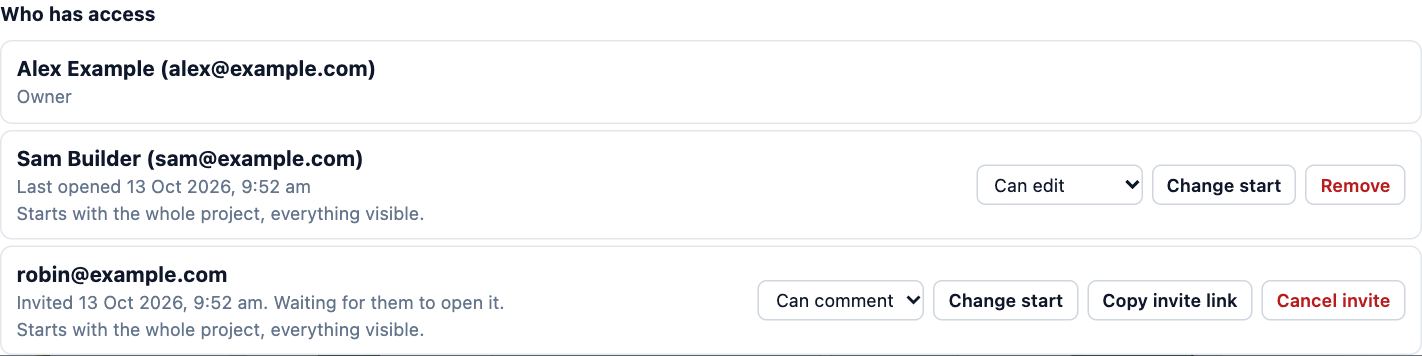
- Change someone’s role with the list beside their name, or Remove them: their access ends straight away.
Tips
- Viewers need no account. People who comment or edit need a free account, and a project shared with them never counts against their own limit.
- A guest with their own Pro or Team plan edits without using one of your guest editor places.
Common mistakes
- Giving edit access to someone who only needs to look: start with Can view or Can comment, and raise it later.
- Sending the link to a different address than the invite: the person must sign in with the email you invited.
Related lessons
Share a project with a linkSend a link that opens the project where you want, for as long as you choose.3 minKeep sharing under controlLimit what people see, end access when a job is done, and see who has been in.3 minPlans and limitsKnow what each plan includes, what sharing it pays for, and where to change plan.3 min
Steps checked in the app on 14 October 2026.