
Learn · Clients and guests · Lesson 3 of 4
Try changes in a connected copy
You willTake a linked copy of a shared project, change it, and send your changes back for the owner to review.
Time4 min
Why it mattersYou can try an idea in full without touching the owner’s project, and they choose what to keep.
You needA free account and a project shared with you. A copy is paid for by a plan: yours, or the owner’s (Project pass 1 copy, Pro 3, Team unlimited).
Try it in Plotlay → Opens an example project with this lesson beside it. Nothing to install.
Steps
- In the shared project, choose Take a copy in the top bar (if you can edit). If you can comment, open Want to change it? in the panel and choose Take a connected copy.
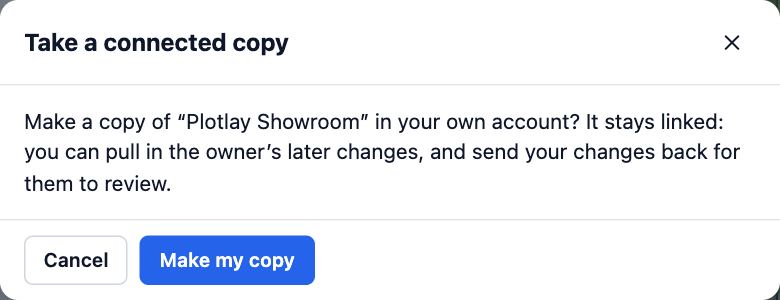
- Choose Make my copy. It opens in your own account, named with (my copy), and stays linked to the original.
- Change anything in your copy, as in any project.
- Choose Connected copy in the top bar. Under Send your changes back, say what you changed (Wider kitchen), add a note, and choose Send for review.
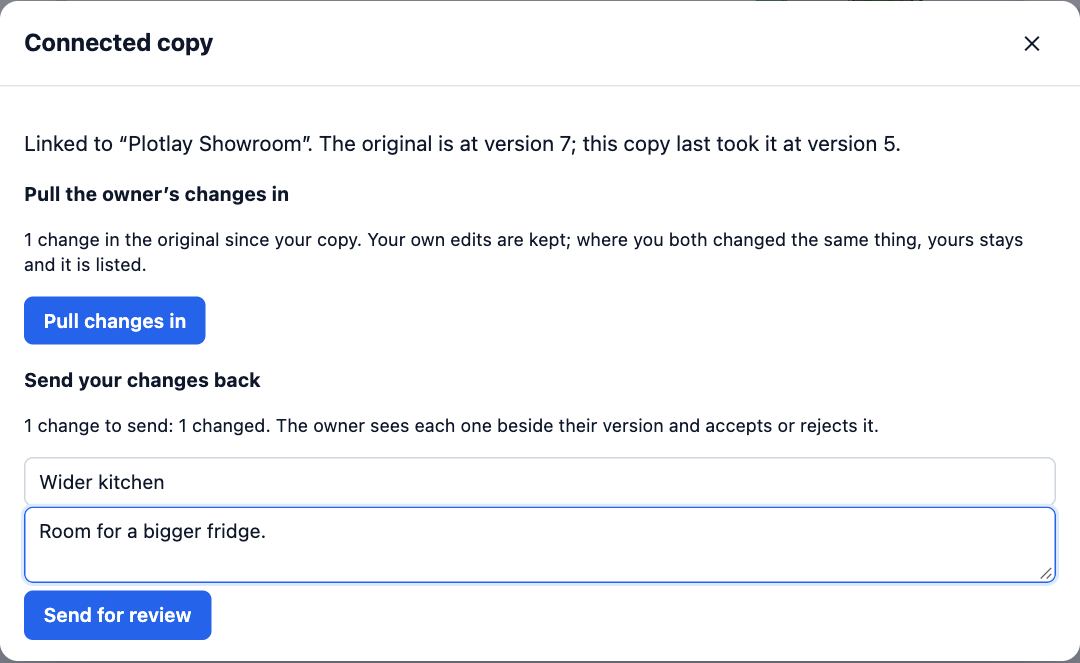
- When the owner changes the original, choose Pull changes in under Pull the owner’s changes in. Your own edits are kept; where you both changed the same thing, yours stays and it is listed.
- A proposal not reviewed yet is under Waiting for review, with Withdraw to take it back.
Tips
- The owner sees each change beside their version and accepts or rejects it, so send a few clear changes rather than a whole redesign.
- Your copy is yours to keep. If the owner later removes your access, the copy stays; only pulling and sending stop.
Common mistakes
- Editing the original when you meant to experiment: as an editor your changes go straight into their project. Take a copy first.
- Sending without a title: the owner sees a list of proposals, so say what it is, such as Wider kitchen.
Words in this lesson
- Guest roles
- What a person you invite may do: Can view (look and walk through), Can comment and pick options, or Can edit. Viewers need no account.
- Connected copy
- A guest’s own copy of a shared project that stays linked to the original. Changes made in it go back as a proposal, and later changes to the original can be pulled in.
Related lessons
Review changes sent back to youSee each proposed change beside your version, accept or reject it, and apply your decisions in one step.3 minOpen a project shared with youOpen a link or an invite, look round the plan and 3D, and know what a free account adds.3 minInvite guests to a projectGive one person view, comment or edit access to a single project, and change or end it later.3 min
Steps checked in the app on 14 October 2026.