
Learn · Clients and guests · Lesson 4 of 4
Review changes sent back to you
You willSee each proposed change beside your version, accept or reject it, and apply your decisions in one step.
Time3 min
Why it mattersGuests can suggest real changes to your plan while you keep the final say on every one.
You needA project you shared, and a guest with a connected copy who sent changes back.
Try it in Plotlay → Opens an example project with this lesson beside it. Nothing to install.
Steps
- When a guest sends changes back you get a notification, and Proposals appears in the top bar with a count.
- Choose Proposals. Each change is listed with its outline Now and Proposed, side by side, and what it changes.
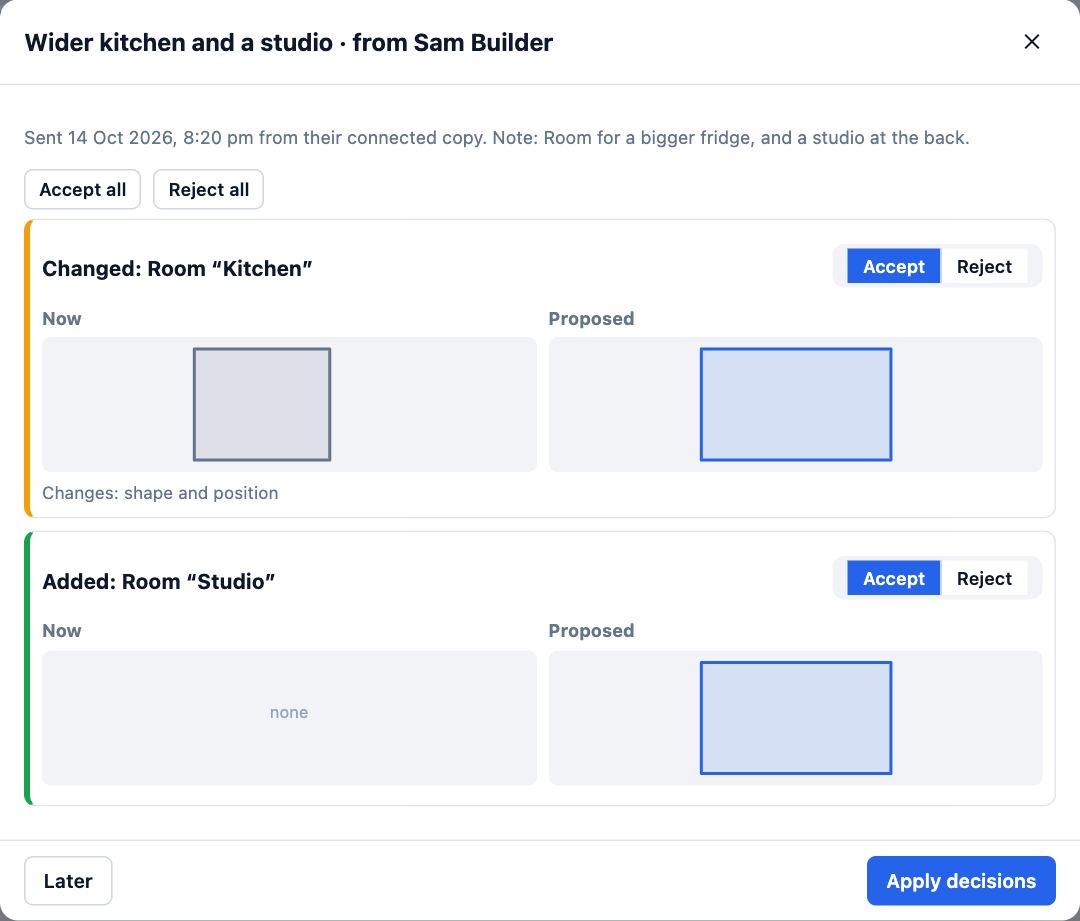
- Choose Accept or Reject for each, or Accept all or Reject all. Something you changed since they copied it starts as Reject.
- Choose Apply decisions. Everything you accepted goes in as one step, so Undo takes it all back. Later leaves the proposal waiting.
- The guest is told what you accepted. Their copy stays linked, so your later changes reach them when they pull.
Tips
- Accepted changes are ordinary edits: change them afterwards like anything else.
- Reject is not a reply. Leave a comment on the place to say why, so the guest knows what to try next.
Common mistakes
- Accepting a change that starts as Reject without looking: it replaces your own newer version of that thing.
- Choosing Accept all on a large proposal: look at each outline first. Undo takes them back, but only until you change something else.
Words in this lesson
- Phase (existing, proposed, demolish)
- Whether something is there now and stays (existing), is new work (proposed) or is coming out (existing, to be removed). Plans, 3D and documents show Current, Proposed or Both from it.
- Guest roles
- What a person you invite may do: Can view (look and walk through), Can comment and pick options, or Can edit. Viewers need no account.
- Proposal
- Changes sent back from a connected copy. The owner sees each change side by side with the project and accepts or rejects it.
Related lessons
Try changes in a connected copyTake a linked copy of a shared project, change it, and send your changes back for the owner to review.4 minUndo, redo and go back in HistoryTake back a mistake, or return the project to an earlier point.2 minKeep sharing under controlLimit what people see, end access when a job is done, and see who has been in.3 min
Steps checked in the app on 14 October 2026.