
Learn · Field and asset teams · Lesson 5 of 6
Work through an asset register on site
You willVisit each asset in turn, nearest first, and record where it is, its form answers or that it is missing.
Time5 min
Try it in Plotlay → Opens an example project with this lesson beside it. Nothing to install.
Steps
- Import the register with Import (CSV, Excel, GeoJSON or KML), or open the example. Choose Capture, then Start GPS.
- Choose Work through list. Plotlay picks the nearest asset and draws a dashed orange line from you to where it should be.
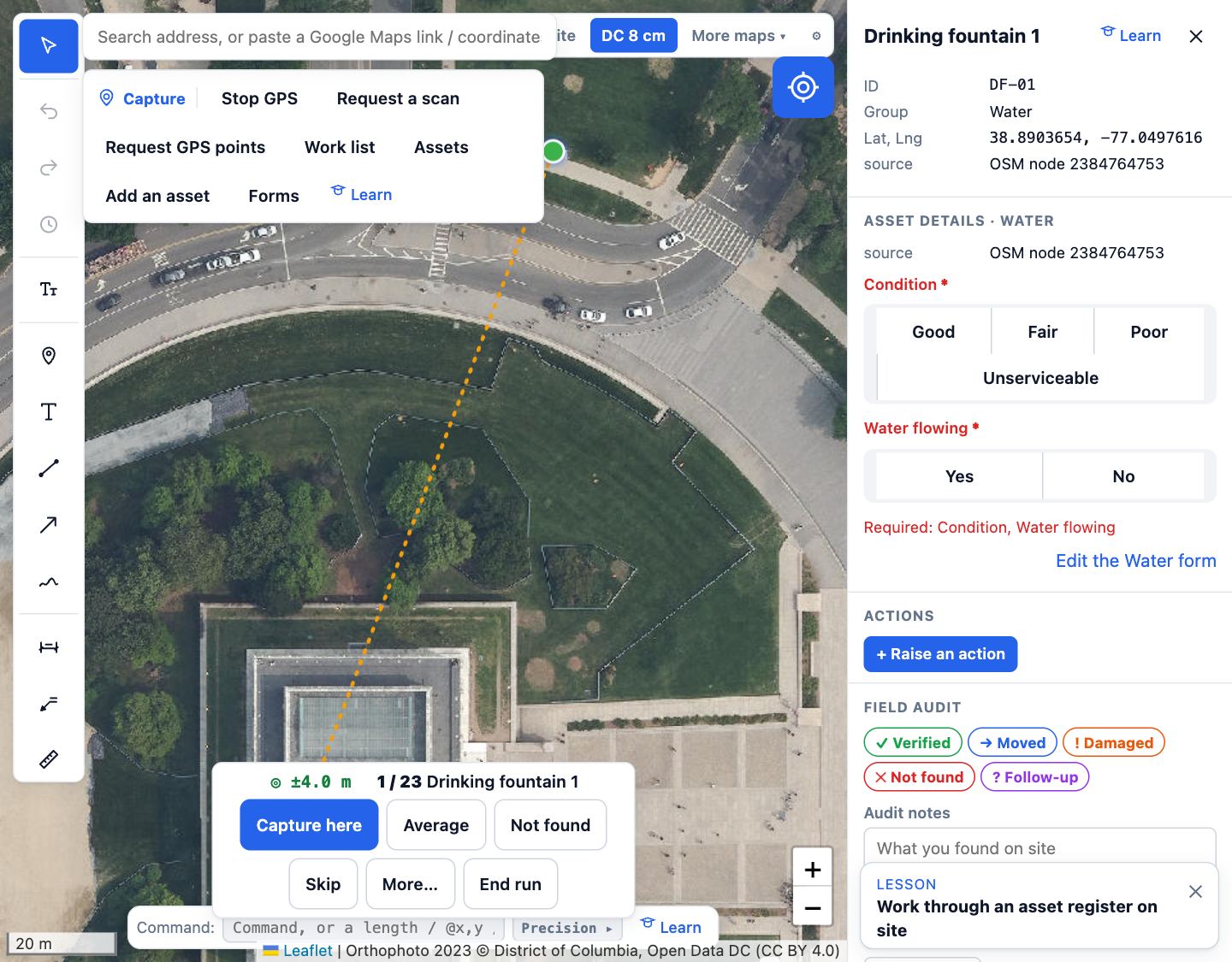
- Walk to it. Standing at the asset, choose Capture here, or Average for a steadier fix.
- Answer its form in the panel on the right, then choose Next asset.
- If it isn’t there, choose Not found; to come back to it later, choose Skip.
- Choose End run to stop. The Items tab shows each asset’s audit status; an asset captured away from its recorded position says how far it moved.
Tips
- Filter the Items list first (type in Filter items) to work through only one group.
- Something on site that isn’t in the register? Capture it as a new find; it is kept apart from the register.
Common mistakes
- Capturing from the car park: the position saved is yours, so stand at the asset.
- Skipping the required questions: Next asset waits until they are answered.
Related lessons
Set up asset formsChoose the questions to answer about each kind of asset on site, with required answers and photos.4 minCapture a GPS point on siteSave a point where you stand, with its accuracy, time and a name.3 minExport to GIS, Excel or Power BIDownload your assets and shapes as GeoJSON, a Shapefile or a CSV, ready for a GIS or a spreadsheet.3 min
Steps checked in the app on 14 October 2026.