
Learn · Field and asset teams · Lesson 4 of 6
Ask someone on site for a scan
You willMark the rooms on a floor plan and send a request; their scan comes back lined up with your plan.
Time4 min
You needA free Plotlay account: requests are tied to it so the scan comes back to you.
Try it in Plotlay → Opens an example project with this lesson beside it. Nothing to install.
Steps
- Sign in, open the project with the floor plan and choose Capture, then Request a scan.
- Under Floor plan, pick the drawing. Choose Add the rooms drawn on it, or click each room on the plan in walking order and name it.
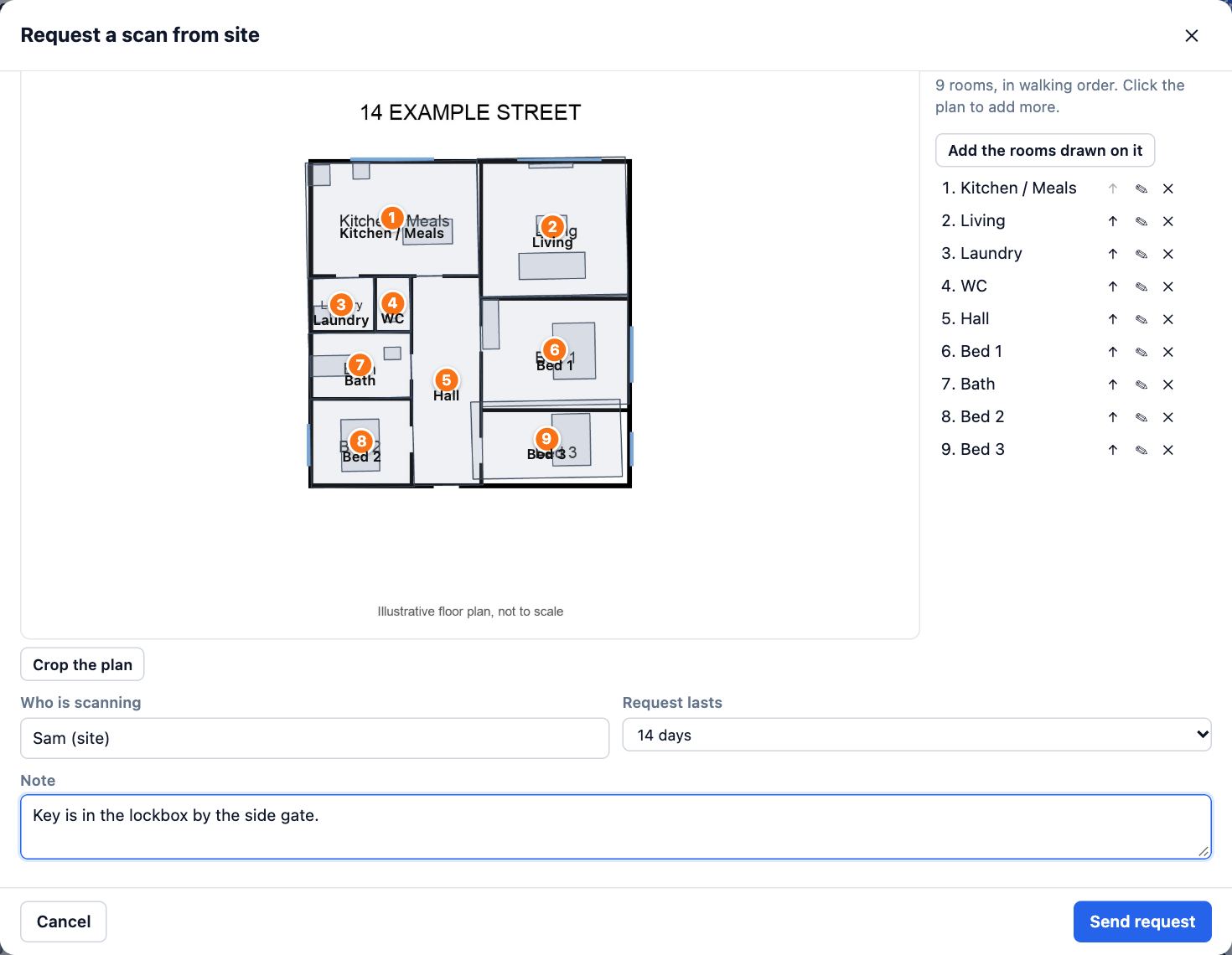
- Fill in Who is scanning (their email to send it, or a name), how long the Request lasts, and a Note such as where the key is.
- Choose Send request. Send the link or code to the person on site; they open it in Plotlay Scan and follow the rooms one by one.
- When they send it back, the rooms arrive in this project lined up on the plan. The Layers tab lists it under Scan requests.
Tips
- To have someone stand on points with a phone instead, add control points to a drawing and choose Request GPS points.
- Mark at least two rooms: the scan is lined up with the plan through them.
Common mistakes
- Marking rooms in a random order: the person on site follows the numbers, so put them in the order they will walk.
- Leaving the request to run out: the link stops working after the days you chose. Send a new one if it lapses.
Related lessons
Send a scan to Plotlay and check itSend the scanned rooms to your project and fix what a scan can’t see.3 minScan rooms with an iPhone or iPadMeasure the walls, doors, windows and furniture of each room by walking round it with the phone.5 minWork through an asset register on siteVisit each asset in turn, nearest first, and record where it is, its form answers or that it is missing.5 min
Steps checked in the app on 14 October 2026.