
Learn · Plotlay Scan for iPhone and iPad · Lesson 3 of 3
Send a scan to Plotlay and check it
You willSend the scanned rooms to your project and fix what a scan can’t see.
Time3 min
You needA finished scan in Plotlay Scan, connected to a project (see Connect Plotlay Scan to a project).
Try it in Plotlay → Opens Plotlay with this lesson beside it. Nothing to install.
Steps
- On the scan’s page in Plotlay Scan, tap Send to Plotlay. When the app is connected, the button names your project.
- It offers to check the rooms first, a minute each: Check the rooms, or Send without checking.
- With photos and room models, choose Send the plan now, photos and models after to see the plan straight away, or Send the plan only.
- In Plotlay the rooms arrive at true size: in a new plan when you started from Scan rooms or a site, or on your plan when you used Scan rooms.
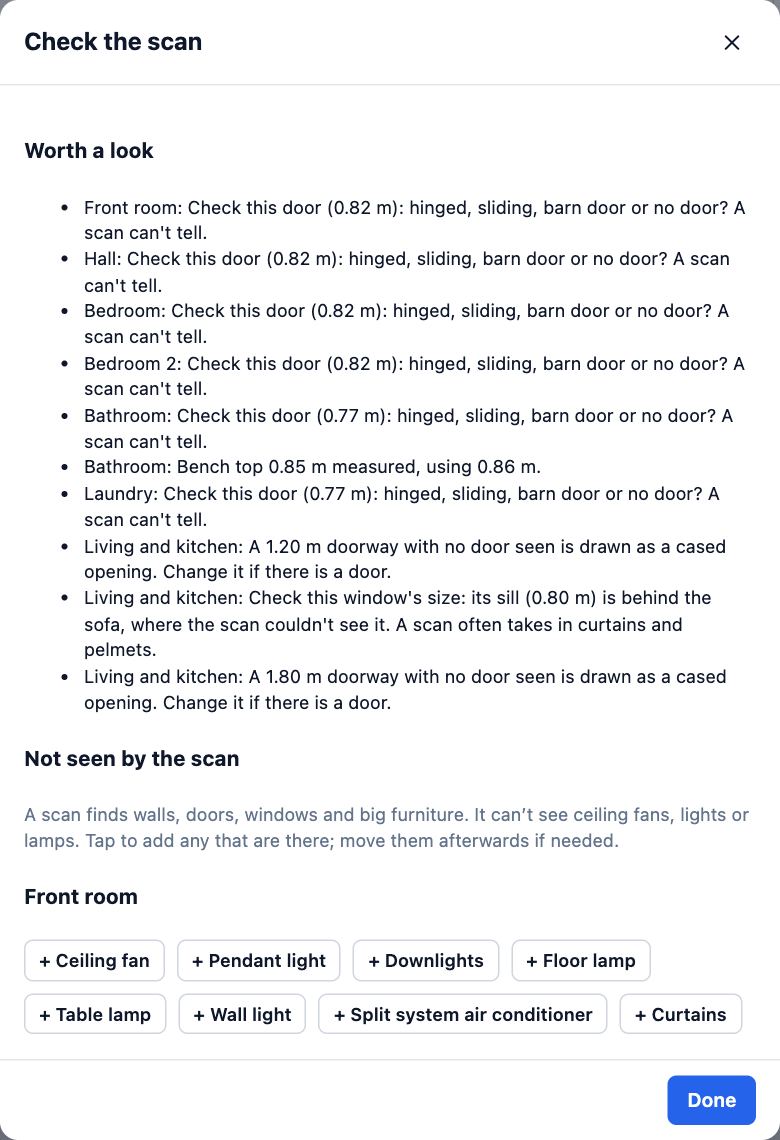
- Read Check the scan. Worth a look lists doors and windows to confirm. Under Not seen by the scan, add what is there with one tap, such as + Ceiling fan, then choose Done.
Tips
- Rooms, doors and furniture land on their own layers, so you can hide or lock them in the Layers tab.
- Scans asked for from site wait under Tasks on the dashboard until they arrive.
Common mistakes
- Closing Plotlay before the scan arrives: keep the waiting dialog open, or use Import a scan file with a file the app exported.
- Ignoring Worth a look: a scan can’t tell a hinged door from a sliding one, so confirm them.
Related lessons
Scan rooms with an iPhone or iPadMeasure the walls, doors, windows and furniture of each room by walking round it with the phone.5 minConnect Plotlay Scan to a projectLink the Plotlay Scan app on your phone to a Plotlay project, so scans go straight into it.2 minAsk someone on site for a scanMark the rooms on a floor plan and send a request; their scan comes back lined up with your plan.4 min
Steps checked in the app on 14 October 2026.