
Learn · Plotlay Scan for iPhone and iPad · Lesson 1 of 3
Connect Plotlay Scan to a project
You willLink the Plotlay Scan app on your phone to a Plotlay project, so scans go straight into it.
Time2 min
You needPlotlay Scan, free on the App Store, on an iPhone or iPad. No account is needed to connect.
Try it in Plotlay → Opens an example project with this lesson beside it. Nothing to install.
Steps
- In Plotlay on your computer, open the project and choose Scan rooms (in the Building workspace). For a new project, choose Scan rooms or a site on the dashboard.
- Plotlay shows a QR code and an 8-character code. Point the iPhone camera at the QR code: Plotlay Scan opens, connected to the project.
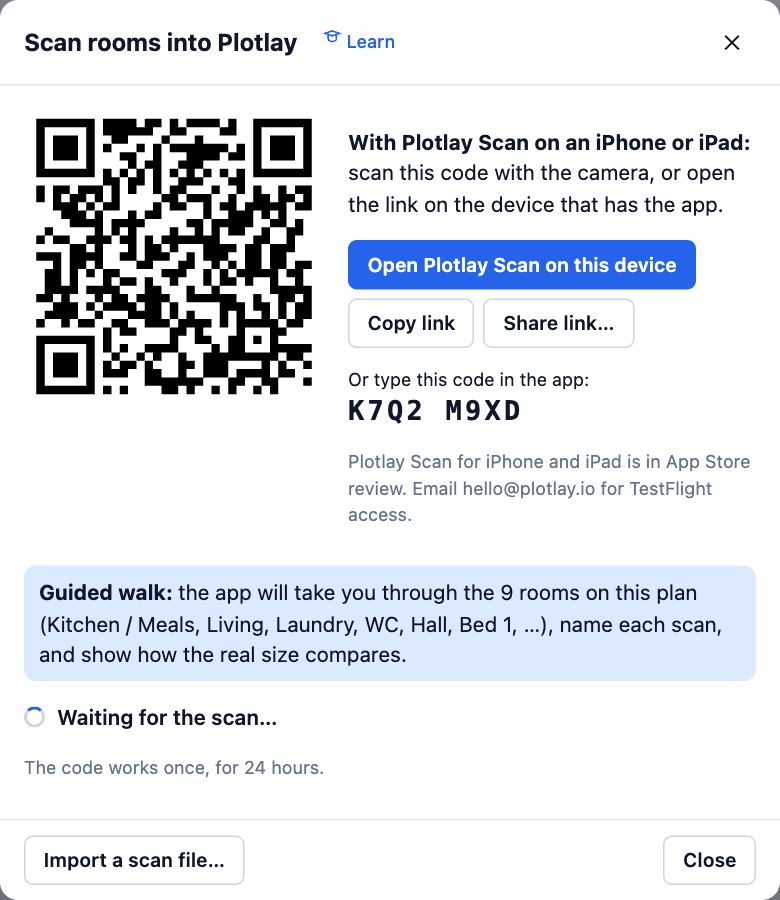
- Or, in Plotlay Scan, tap More (the three dots), then Connect to a Plotlay project, type the code and tap Connect.
- The app shows Connected to Plotlay with the project’s name. Plotlay waits for the scan.
- The code works once, for 24 hours. To send it to someone else’s phone, choose Copy link and message it to them.
Tips
- On the same iPhone or iPad as Plotlay, choose Open Plotlay Scan on this device instead of scanning the code.
- When the project already has rooms drawn, the app offers a guided walk through them, room by room.
Common mistakes
- Scanning the QR code with the phone’s camera before Plotlay Scan is installed: install it first, then scan the code again.
- Using a code from yesterday: codes last 24 hours. Choose Scan rooms again for a new one.
Related lessons
Scan rooms with an iPhone or iPadMeasure the walls, doors, windows and furniture of each room by walking round it with the phone.5 minSend a scan to Plotlay and check itSend the scanned rooms to your project and fix what a scan can’t see.3 minAsk someone on site for a scanMark the rooms on a floor plan and send a request; their scan comes back lined up with your plan.4 min
Steps checked in the app on 14 October 2026.