
Learn · Plotlay Scan for iPhone and iPad · Lesson 2 of 3
Scan rooms with an iPhone or iPad
You willMeasure the walls, doors, windows and furniture of each room by walking round it with the phone.
Time5 min
You needAn iPhone or iPad with Plotlay Scan. LiDAR models (iPhone Pro, iPad Pro) find walls, doors, windows and furniture; other models capture the floor corners.
Try it in Plotlay → Opens an example project with this lesson beside it. Nothing to install.
Steps
- In Plotlay Scan, choose Scan a room with LiDAR. On an iPhone or iPad without LiDAR, choose the corners option: aim at each floor corner and tap.
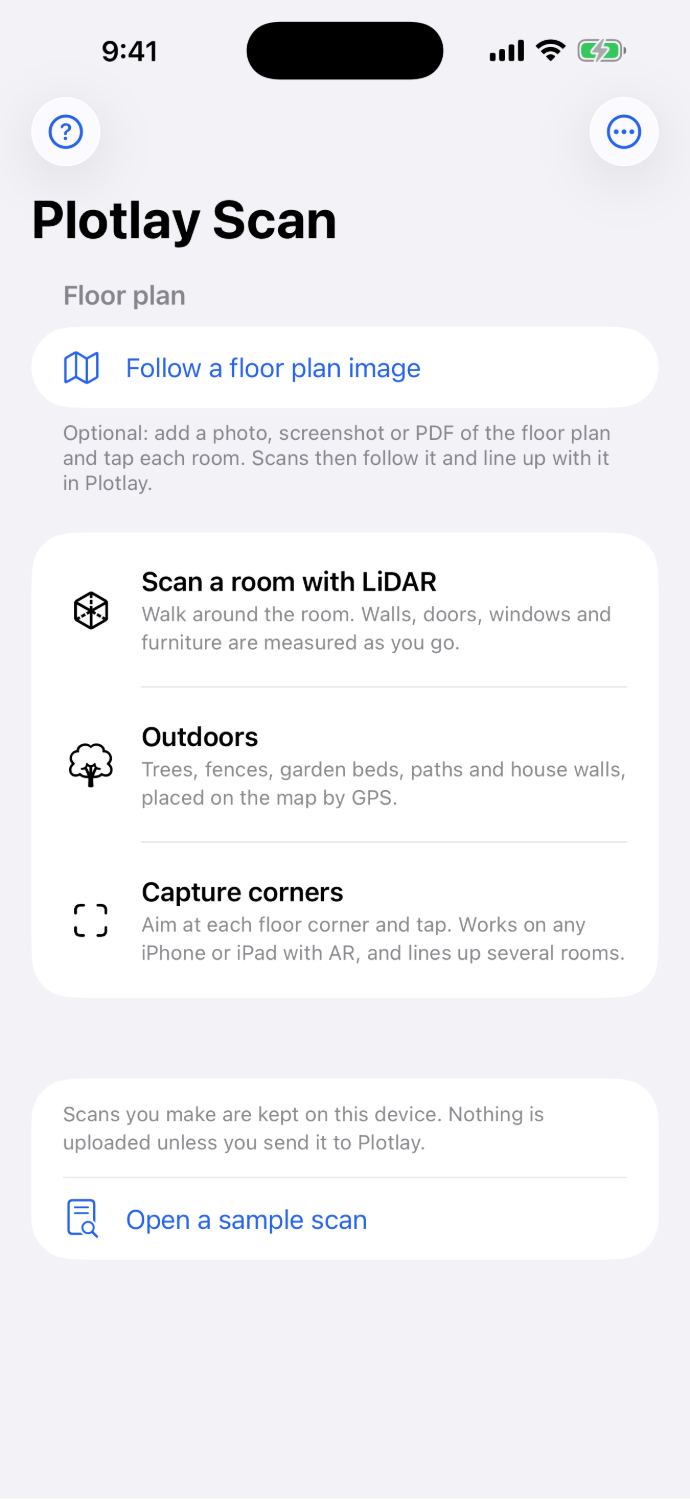
Plotlay Scan on iPhone (the App Store screenshot). - If the project already has rooms, choose Follow the plan, room by room: the app takes you through them in order and each scan lands in its own room. Otherwise choose Scan without the plan.
- Walk slowly round the room, pointing the camera at every wall and the edges of the floor and ceiling. Doors, windows and furniture are found as you go.
- Tap Room done. Then Scan the next room, or Redo this room if it went wrong.
- Tap Finish when every room is scanned. The scan’s page shows the plan with lengths and areas; Check measurements with a tape corrects it with a tape measurement.
Tips
- Scans stay on the phone until you send them. Open a sample scan shows what a finished scan looks like.
- Move furniture away from windows if you can: the scan can’t see a sill behind a sofa.
Common mistakes
- Walking too fast or pointing at the floor: go slowly and keep the walls in view.
- Scanning two rooms as one through a wide opening: tap Room done at the doorway and start the next room.
Related lessons
Connect Plotlay Scan to a projectLink the Plotlay Scan app on your phone to a Plotlay project, so scans go straight into it.2 minSend a scan to Plotlay and check itSend the scanned rooms to your project and fix what a scan can’t see.3 minMeasure a room and type it inTurn tape measurements of a room into a room on the plan, with its area and perimeter.4 min
Steps checked in the app on 14 October 2026.