
Learn · Field and asset teams · Lesson 2 of 6
Set up asset forms
You willChoose the questions to answer about each kind of asset on site, with required answers and photos.
Time4 min
Try it in Plotlay → Opens an example project with this lesson beside it. Nothing to install.
Steps
- Choose Capture, then Forms.
- Under Asset type comes from, pick the column that says what kind of asset each one is, such as Group. Each type is listed on the left; Every asset is asked of all of them.
- Choose a type, such as Signage, then + Add a question. Type the question and pick its kind, such as Choose one, Yes / no or Photo.
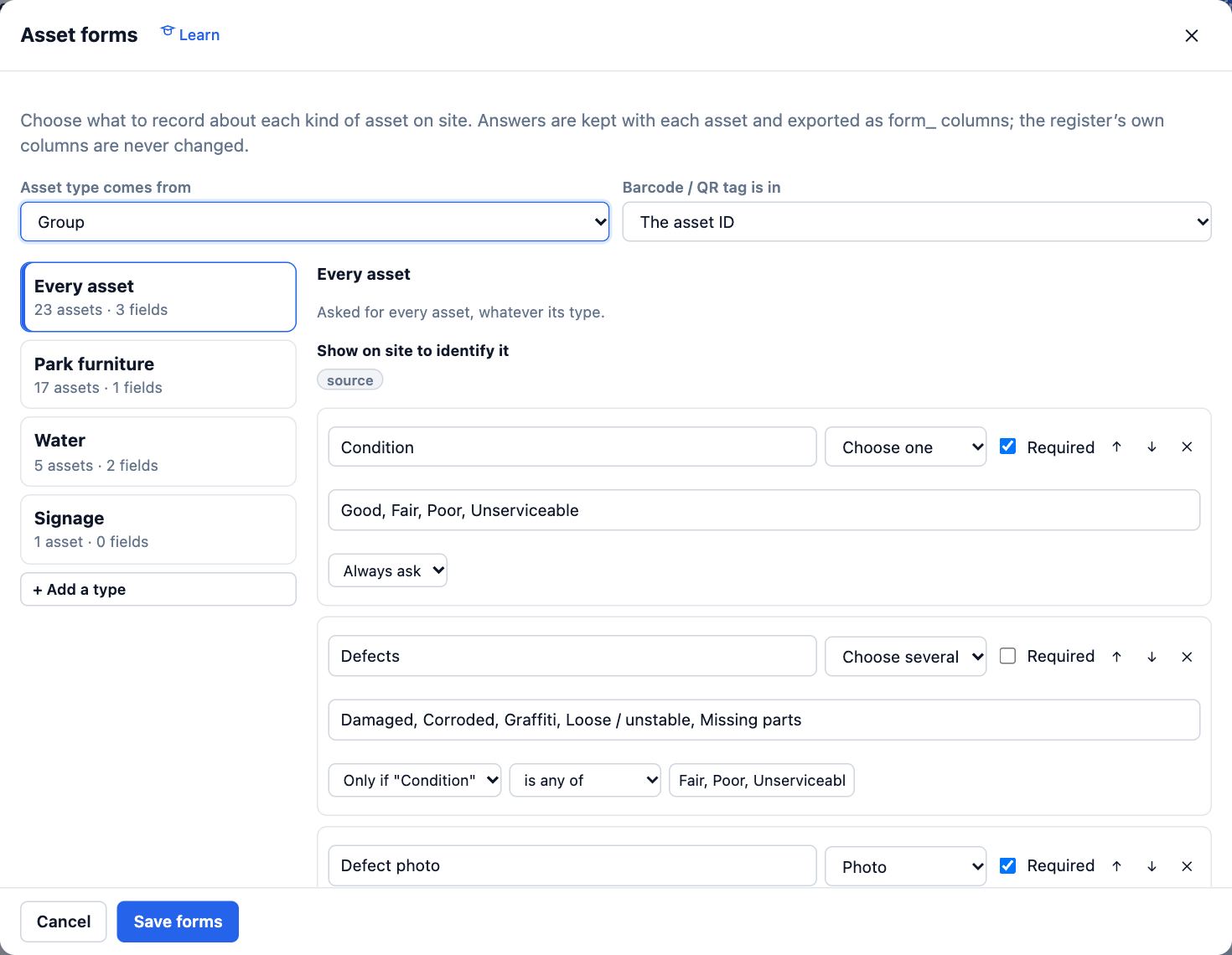
- For a choice, type the options separated by commas. Tick Required if it must be answered before moving on.
- Or choose Add a ready-made set… for a Condition check, Equipment nameplate or Inspection form.
- Choose Save forms. Select an asset to see its form in the panel on the right.
Tips
- A question can show only after an answer: set Always ask to Only if another question, such as Defects only if Condition is Fair or Poor.
- Answers export as form_ columns, so the register’s own columns are never changed.
Common mistakes
- Making every question required: on site that slows each asset down. Keep required for what you truly need.
- Picking the wrong column under Asset type comes from: every asset then lands in one type.
Related lessons
Work through an asset register on siteVisit each asset in turn, nearest first, and record where it is, its form answers or that it is missing.5 minCapture a GPS point on siteSave a point where you stand, with its accuracy, time and a name.3 minExport to GIS, Excel or Power BIDownload your assets and shapes as GeoJSON, a Shapefile or a CSV, ready for a GIS or a spreadsheet.3 min
Steps checked in the app on 14 October 2026.