
Learn · Field and asset teams · Lesson 8 of 9
Bring in and check underground services
You willImport a services file as located services, put your own in the register, and check what digs near them.
Time5 min
Why it mattersWater, sewer, gas, power and telecoms in the ground decide where you can dig, and a strike is dangerous and costly.
You needA map project, and a services file: a GeoJSON, KML or zipped Shapefile from the water authority, council or utility, or a Before You Dig (BYDA) export.
Try it in Plotlay → Opens Plotlay with this lesson beside it. Nothing to install.
Steps
- Choose Add overlay (Overlay on narrower screens) in the top bar, then Shapes from a file, and pick the services file.
- Plotlay asks Import as underground services? and shows which of the file’s columns it read as the service, size, depth, material, owner, asset id, condition and year. Change any that are wrong.
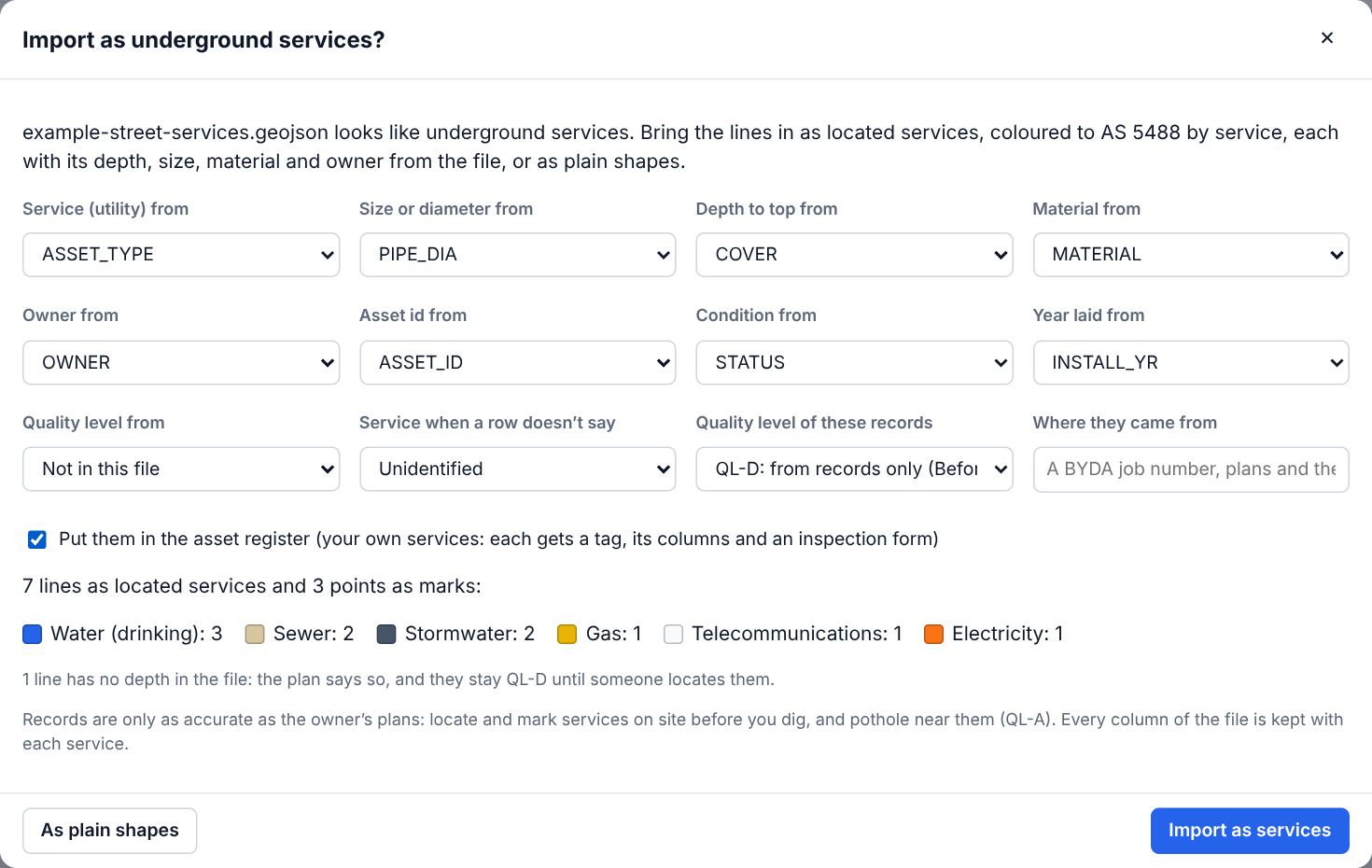
- Set the quality level of these records (QL-D for records only) and where they came from (a BYDA job number). Tick Put them in the asset register for your own services, then choose Import as services.
- Each line is a located service in its AS 5488 colour, on a layer per service; points become pits, valves and marker posts. Select one to change its depth, quality level or condition as it is located on site.
- To draw one by hand, open Library, then Energy & services: a located service for each utility, a service location mark or a drainage pipe.
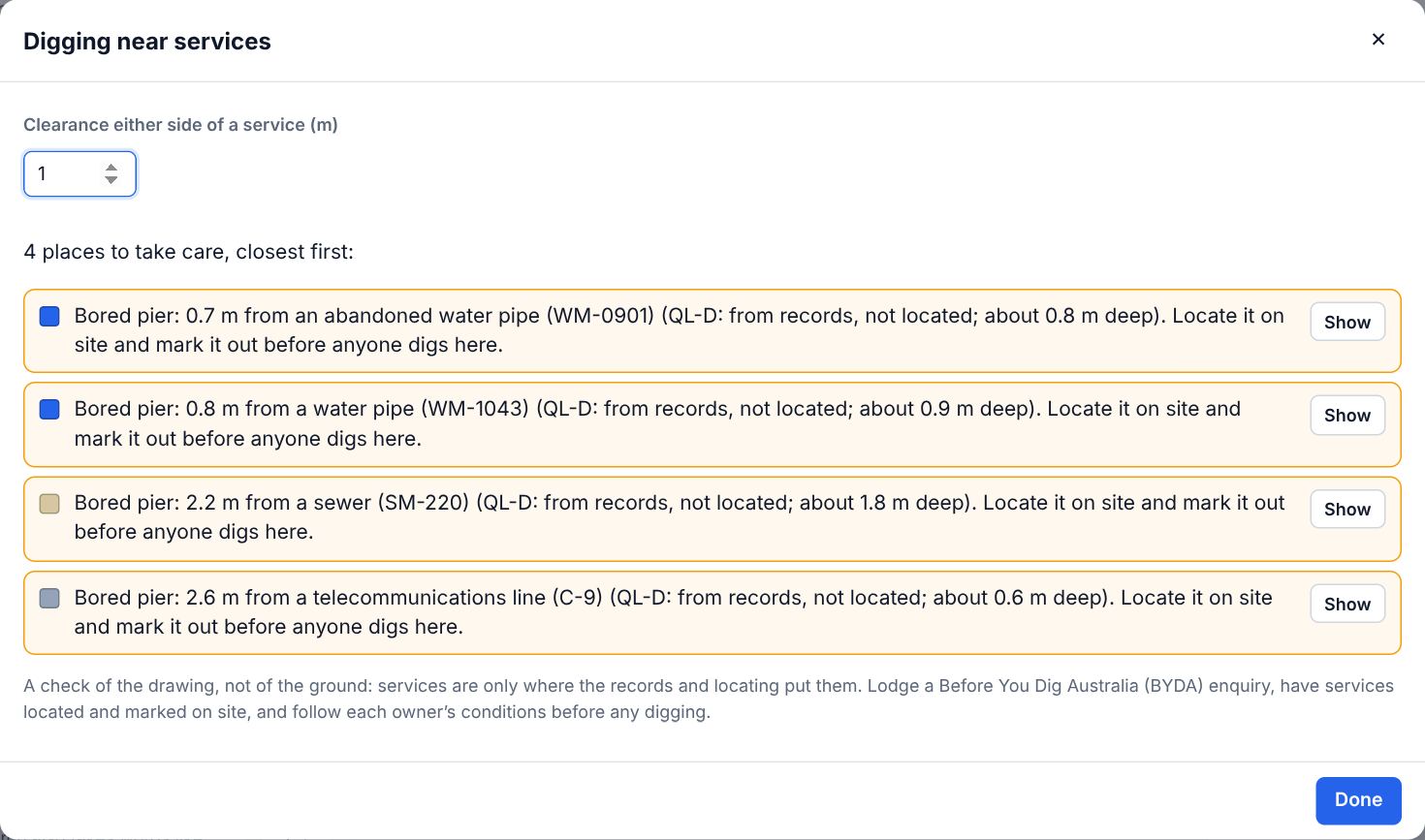
- Dig check (in the Site workspace, or Ctrl+K) lists everything that digs near a located service, closest first: footings, piers, posts, pits, trenches, new pipes and trees to plant. Show goes to each.
- In 3D, the Show menu’s See underground makes the ground see-through, so the services show at their depth.
Tips
- Records are only as accurate as the owner’s plans. A locator traces a service to QL-B; potholing exposes it (QL-A). Change the quality level as you go: the dig check allows for it.
- Every column of the file is kept with each service, and Export, GIS data gives them back with the service’s own columns.
- The connector does the same with import_file (as: "services") and dig_check.
Common mistakes
- Treating the dig check as clearance to dig: it checks the drawing, not the ground. Lodge a BYDA enquiry, have services located and marked on site, and follow each owner’s conditions.
- Putting a BYDA record of someone else’s services in your asset register: leave the box unticked for those.
Words in this lesson
- Overlay
- A drawing, plan or picture laid over the map or plan, such as a site plan PDF or a DXF. Pin it to line it up with the aerial.
- Workspace
- Site, Building, Capture or Documents in the top bar. A workspace changes which tools come first; it never hides anything in the project.
- Layer
- A group of things in a project, listed in the Layers tab. A hidden layer is left out of the plan, 3D and documents until you show it again.
- Library
- Real-sized things to place, by category and subcategory: kitchen, bathroom, furniture, lighting, power, heating, stairs, outdoor, site, commercial, vehicles, plants. Search in your own words (GPO, countertop), filter, and star favourites.
Related lessons
Draw overhead power and telecom linesDraw an overhead line with its poles, add service lines, stays and transformer poles, see them in 3D and audit the poles on site.6 minExport to GIS, Excel or Power BIDownload your assets and shapes as GeoJSON, a Shapefile or a CSV, ready for a GIS or a spreadsheet.3 minSet up asset formsChoose the questions to answer about each kind of asset on site, with required answers and photos.4 min
Steps checked in the app on 22 October 2026.