
Learn · Designers and builders · Lesson 8 of 21
Read a set of drawings from your designer
You willTurn a DXF or PDF set (plans, elevations, sections) into views you can check, overlays side by side and rooms with the right heights.
Time5 min
Why it mattersDrawings someone else made become a working model in minutes, with the ceiling heights and roof read from the elevations instead of guessed.
Try it in Plotlay → Opens Plotlay with this lesson beside it. Nothing to install.
Steps
- Ask for the best file you can get: a DXF from the CAD program (a DWG saved as DXF), else a PDF exported from it. A scan or a photo works, read from its pixels, and its sizes need checking.
- For the quick way, choose Rooms from drawings in Quick start and add the file. Plotlay finds the floor plan in the set and shows its elevations and sections beside it.
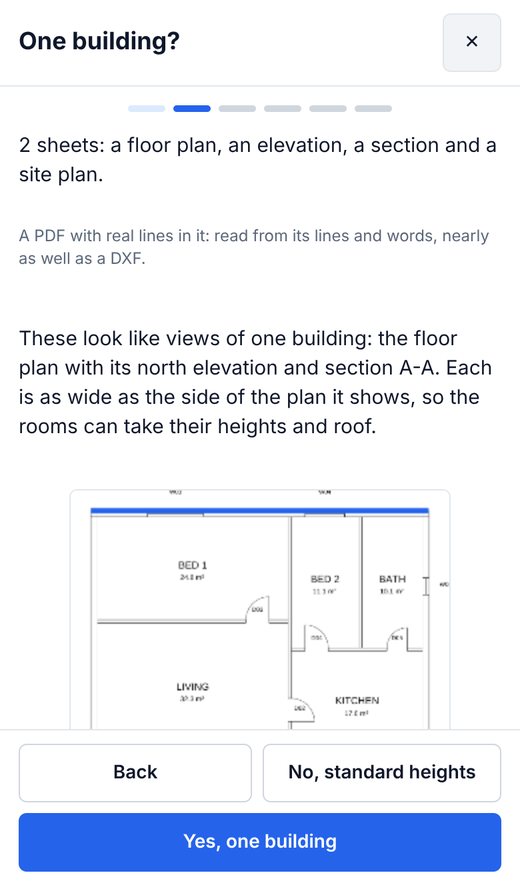
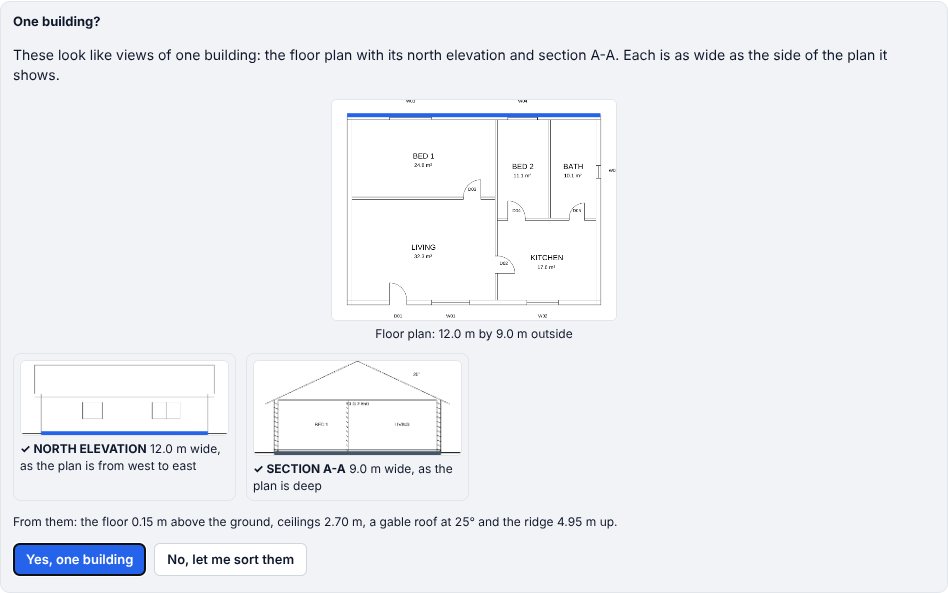
- When each elevation is as wide as the side of the plan it shows, it says These look like views of one building: check the coloured sides, then choose Yes, one building. The rooms take the ceiling height, floor level and roof from them.
- For every view, open Add overlay, A set of drawings. A card shows each view with what it is, its level or side, and its scale; change any that are wrong and untick the ones you don’t want.
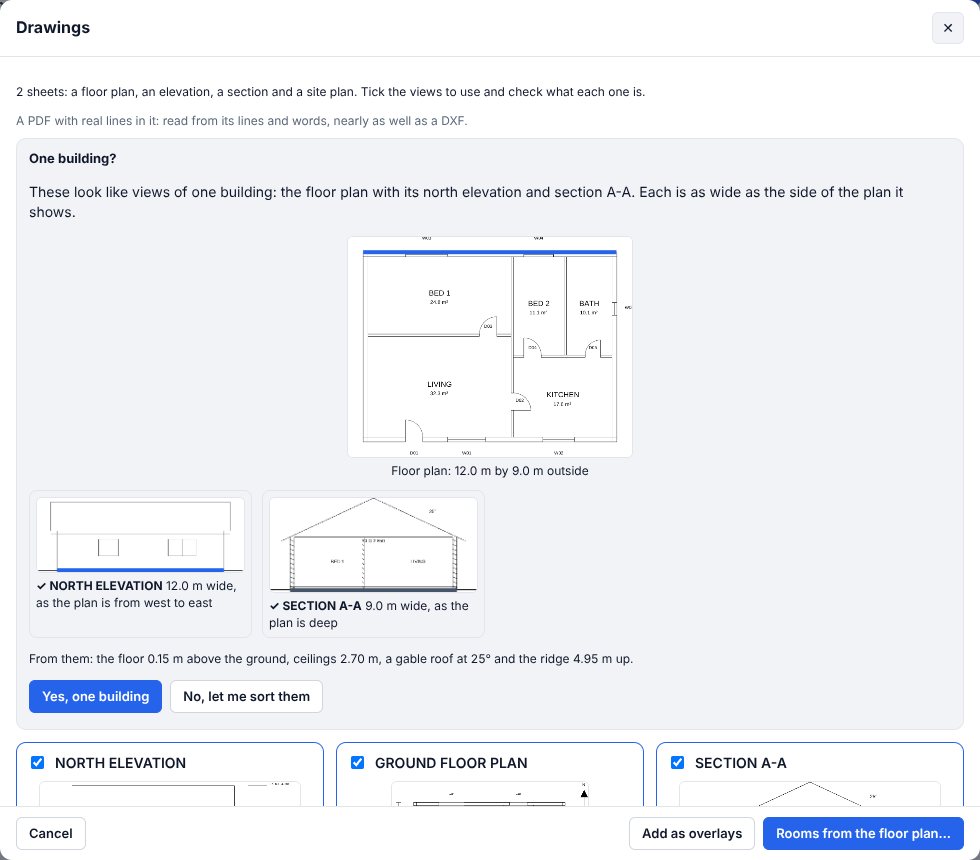
- Above the cards, One building? asks the same question. When a view doesn’t fit (another building, or a side named wrongly), say This building? and which side it Shows for each, then Use these together.
- Choose Add as overlays to lay the views out at their true sizes, each elevation beside the side of the plan it shows, or Rooms from the floor plan to make the rooms with those heights.
- In Rooms from drawings, check what was found, the scale (from the drawing’s 1:100) and the names read off the plan, then Make it.
Tips
- Walls drawn as two thin lines, windows drawn in three lines and every door swing are read from the drawing’s lines, so a CAD drawing reads more exactly than its picture.
- A view with no title is still recognised from what is drawn: a ground line for an elevation, cut walls for a section, swings for a plan. Check the ones marked a guess.
- An AI agent can do the same through the connector: import_file with as: drawings or as: rooms.
Common mistakes
- Giving a DWG: browsers can’t read it. Save it as DXF.
- A plan with no scale on it: type its scale on the card (Scale 1:), or measure a room in Rooms from drawings.
- Saying yes to one building when an elevation is of the garage or a neighbour: its heights would go into the house. Choose No, let me sort them, and mark it No.
Words in this lesson
- Overlay
- A drawing, plan or picture laid over the map or plan, such as a site plan PDF or a DXF. Pin it to line it up with the aerial.
- Elevation and section
- An elevation is a side of the house, or a wall from inside, drawn straight on. A section is a cut through the building along a line you place.
- Connector (MCP)
- The way Claude and other AI agents work in your Plotlay projects as you, through the Model Context Protocol at app.plotlay.io/mcp.
Related lessons
Issue a drawing setMake one numbered PDF of plans, elevations, 3D views and schedules with your title block.4 minMake elevations and sectionsGet scaled outside elevations, sections and inside wall views from the plan, and download them as a PDF.4 minGive each building its own roofRoof every building on a site its own way: a house, a granny flat, the neighbours, farm sheds or a campus.4 min
Steps checked in the app on 23 October 2026.