
Blog ·
Design a room you can build, not just picture: precise plans instead of AI guesses
Ask ChatGPT for a Japandi bedroom and you get a lovely picture in seconds. Ask it to keep that bedroom but move the bed 300 mm to the left, and you get a different lovely picture: a new window, a wardrobe that wasn't there, a bed that has quietly changed size. Getting a room right, to the centimetre, so you can buy the furniture and brief a builder, is the job Plotlay was first built for.
What a chatbot is good at, and where it stops
Chatbots and image generators are excellent for inspiration: a look, a palette, a list of things a kids' room usually needs, a dozen ideas you hadn't thought of. Keep using them for that.
Where they fall down is precision, and it shows up in the same few ways:
- They make up details. The picture has a second window, a skylight, a wall of joinery or a door that isn't in your room. It looks right because it was drawn to look right, not to match anything.
- They don't hold numbers. Tell it the room is 3.6 by 4.2 metres and the result is whatever looks plausible. A queen bed, two bedsides and a 2.4 m wardrobe can all appear in a room that can't fit them.
- They don't follow precise instructions. Each change redraws the whole scene, so fixing one thing breaks another. You can't say "this, but the desk under the window" and get only that.
What a precise design gives you
In Plotlay the room is drawn at its real size and every piece is a real object with real dimensions. The layout follows the rules a designer works to, not what looks nice in one frame:
- 0.6 m to walk round a bed, and 0.7 m in front of a wardrobe to open it.
- 1 m clear in front of kitchen benches and all round an island, and 300 mm of bench either side of the cooktop.
- The toilet in a 0.9 m wide space with 0.6 m in front, nothing in the door's swing, and nothing tall across the window.
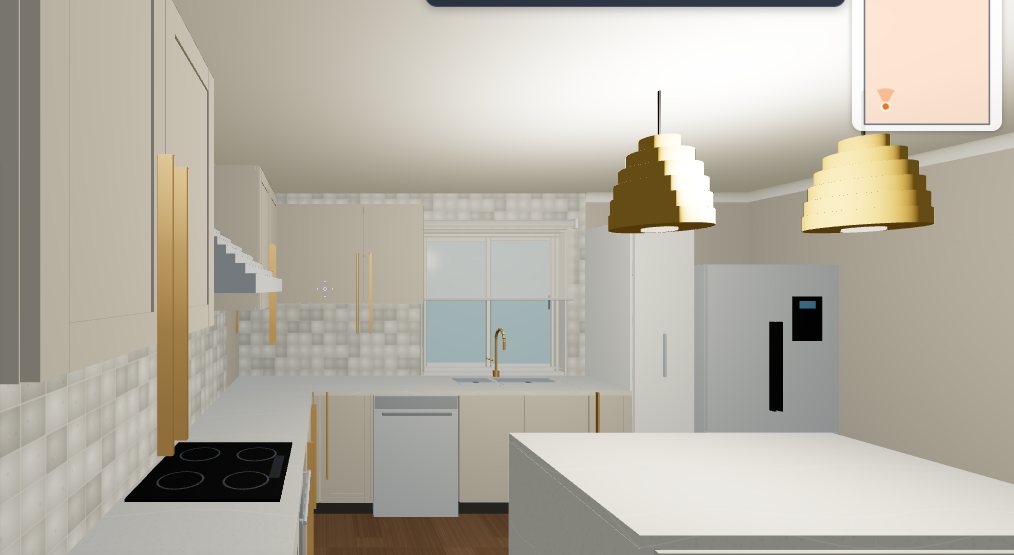
Then you walk through it in 3D from the doorway, make a photo-quality render, and share a link. Move the bed 300 mm and only the bed moves (with its bedsides and lamps). If a move would block the door or run into the wardrobe, Plotlay says so in words and leaves it where it was.
Your measurements matter: the design is as accurate as the room sizes you give it. Use a tape measure, or scan the room with an iPhone, rather than guessing from a photo.
Three ways to work
1. Lean on your chatbot, through the connector
If you like working in ChatGPT or Claude, keep doing it. Connect it to Plotlay (how to connect your AI agent) and ask in plain words: "Make me a 3.6 by 4.2 m bedroom for a couple, Japandi, with the door on the south wall and a desk." The chatbot doesn't draw the room itself: it asks Plotlay to, and Plotlay lays it out by the same rules as the app. Every number comes from the tools, not from the chatbot's imagination. Ask for another layout, a different look, or "move the desk to the window" and it changes just that, in your project, where you can open and check it.
2. Design it yourself, from scratch
Draw the walls to your measurements, add the door and windows, and place furniture and fittings from the Library: beds, sofas, kitchen runs, vanities, lights, more than a thousand pieces at real sizes, in real finishes. You decide everything, and every dimension is yours.
3. Both: start fast, then make it yours
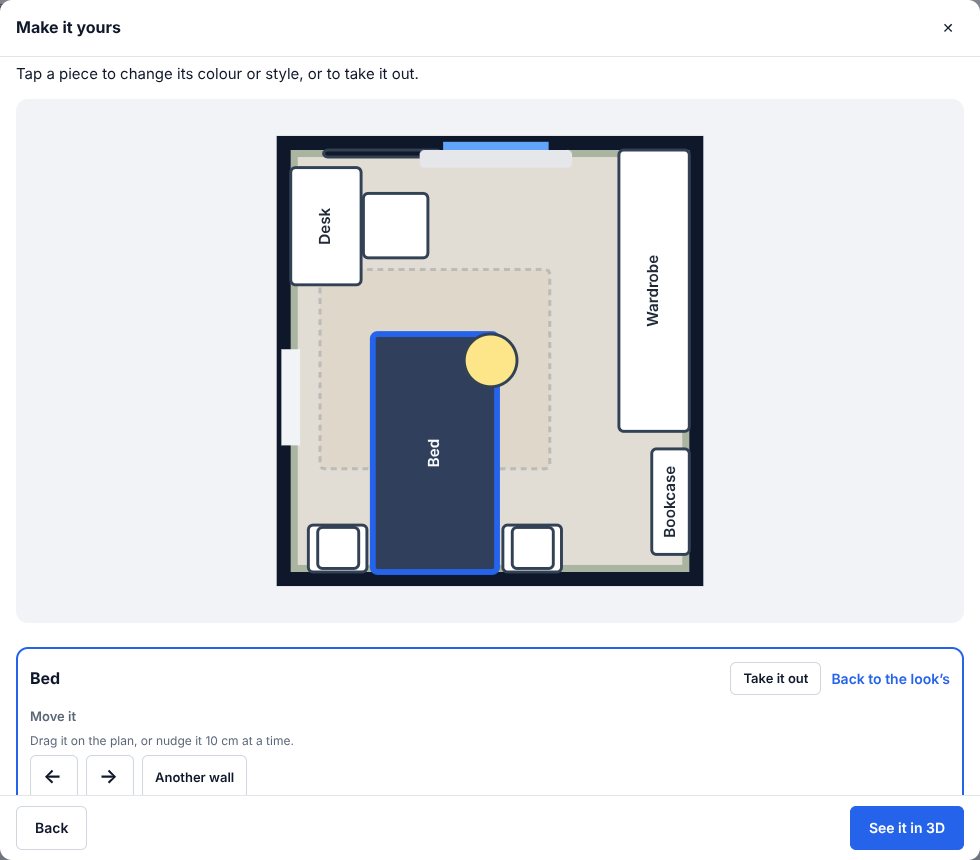
Most people end up here. Let Quick start or your chatbot lay the room out in a minute, then change it by hand: drag the bed to another wall, swap the timber on the wardrobe, take the rug out, add an armchair and a floor plant, or tell your chatbot to try the desk on the other side. It's one project either way, so the chatbot, Quick start and your own changes all work on the same room.
Easy mode or the full detail
Quick start is the easy way in. Pick the room (bedroom, kids' room, living room, home office, kitchen, bathroom or laundry), how big it is in words or to the centimetre, rectangular or L-shaped, a look, and a few sensible questions. Plotlay furnishes it, you tap any piece to change, move or remove it, add more from a list of what fits, then see it in 3D, make a photo and share a link. No drawing tools to learn.
When you want more, the full editor is the same project with everything open: any room shape, several rooms and levels, your own finishes and objects, measured plans, elevations and room packs, renders, estimates and drawings for council. Start easy and go deeper whenever you like; nothing is lost.
Every tool is on the Free plan. Paid plans add more projects in your account, more sharing and render credits.
Design a roomPut a plan on a map
More from the blog
- How to put a floor plan on a satellite map, to scale
- Measure a house with an iPhone LiDAR scanner
- Find your property boundary online, free (SA, VIC, QLD and TAS)
- Why satellite images don't line up (and what to trust instead)
- Wall thickness in Australian houses: double brick, cavity, veneer and stud
- Drawing a site plan for a council or development application
- Overlay renovation plans on your floor plan and compare layouts