
Sharing · clients and trades
Sharing
Send a project to a client, a builder or a designer. They look round the plan, walk through it in 3D and see each design option, starting where you choose. Viewing needs no account; commenting and picking options need a free one.
Try sharing
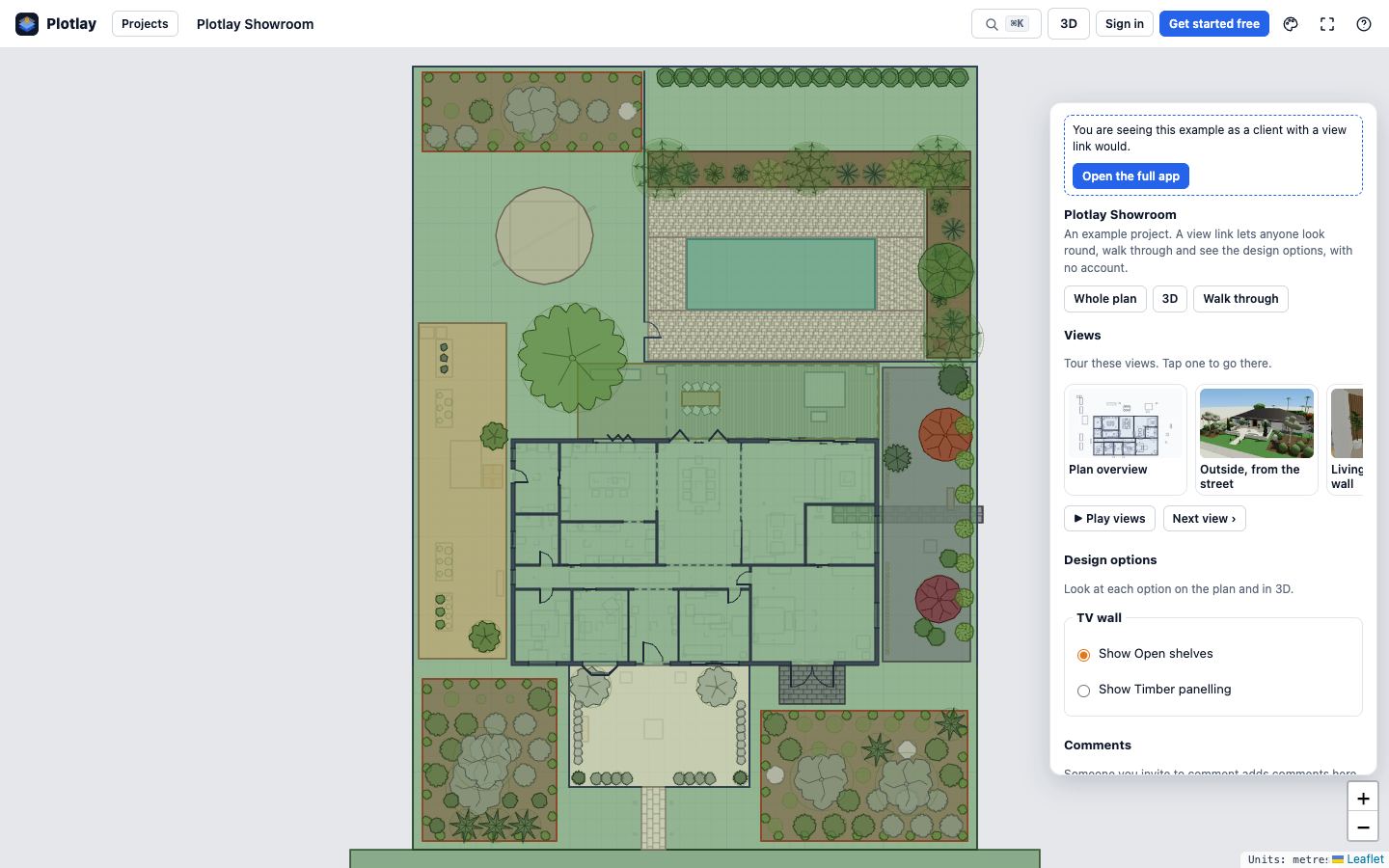
Each button opens the Showroom example, a display home with a TV wall in two design options and four saved views, the way the person you share with would see it.
No sign-up. The example opens as a copy on your device, so nothing you change reaches anyone else. Open the full app from the banner at the top of the panel.
Who can do what
There are three ways in, plus the owner. The person sharing chooses each one, and their plan pays for it.
View link
No account needed
- Look round the plan, walk through in 3D and step through the saved views.
- See each design option.
- Download the documents you allow.
- Changes nothing.
Comment guest
A free account
- Everything a view link gives.
- Leave comments, pinned to a place, a room or an item.
- Pick a design option. You see their pick.
- Accept or decline a quote you sent with the project.
Edit guest
A free account and an editor place
- Changes the project with you.
- Uses one of your guest editor places, unless they have their own Pro or Team plan.
- You can limit them to some rooms or layers: changes outside those are put back.
Client view
What view and comment guests see
- The plan, the 3D walk-through, the design options and the documents you allow.
- Your note, and where you chose for them to start.
- Quotes to accept or decline, and options to pick (comment guests).
- No editing tools, so nothing they do changes the project.
What each plan includes
| Free | Project pass | Pro | Team | |
|---|---|---|---|---|
| View links | 1 per project, 7 days, small Plotlay mark | unlimited | unlimited | unlimited |
| Guests who comment | 2 per project | 10 per project | 10 per project | unlimited |
| Guest editors | with their own Pro plan | 2 per project | 3 per project | members, plus 5 guests |
A project shared with someone never counts against their own limit. If your plan changes and a project has more guests than it now includes, nobody loses access; new invites wait until there is room. Schedule of fees.
Saved views
A saved view keeps where you are looking: the plan, the 3D model or walking through it, with the layers, the level and the design options shown at the time. Press Save view and it is named from where you are, for example the room and the option shown. Select a cabinet, a vanity or a bath and choose Look at this to stand in front of it at eye height with all of it in view.
- Go back to one from the Views list, or with the keys 1 to 9 in 3D.
- Play views goes to each in turn with a pause on each; Previous and Next step through them.
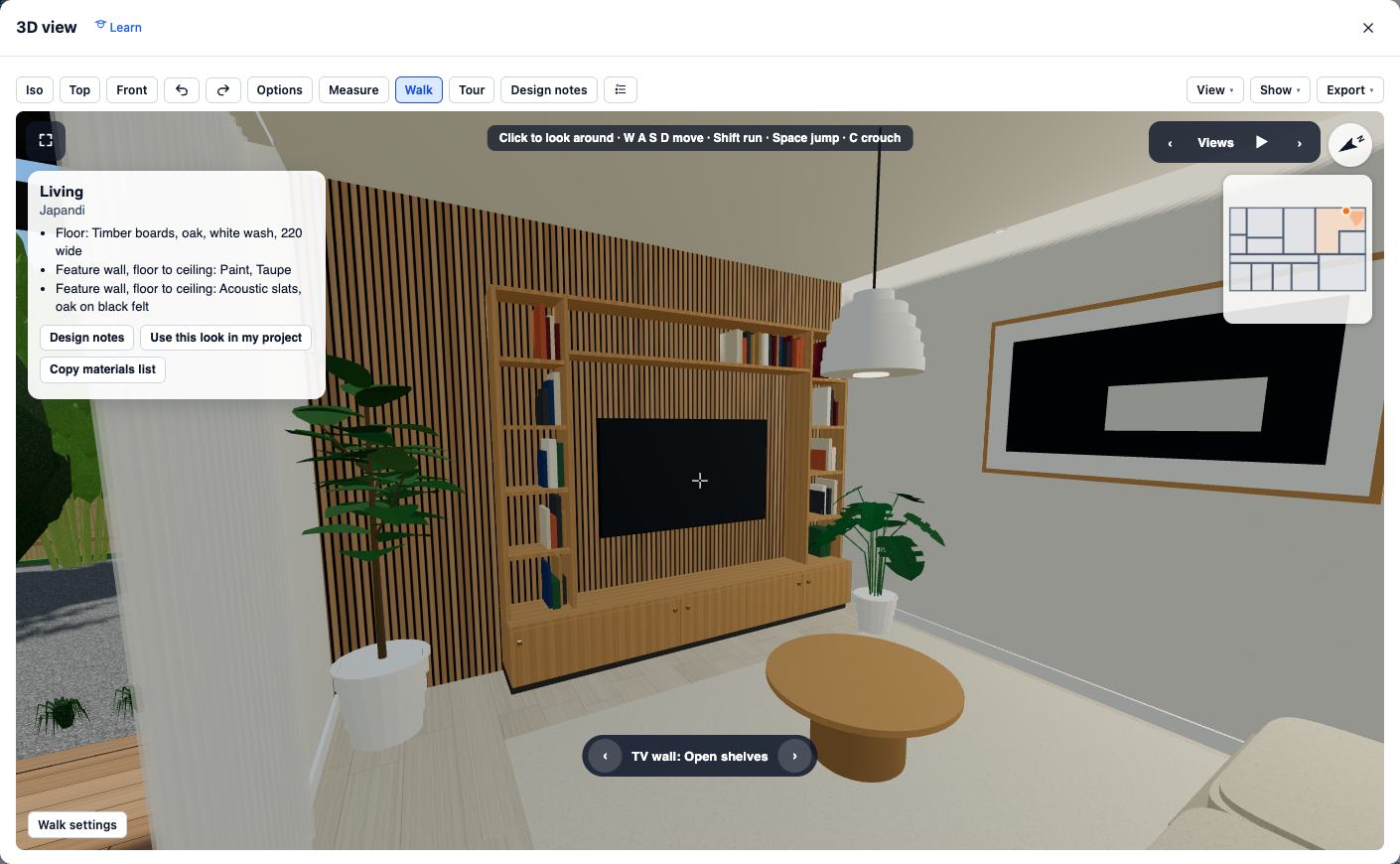
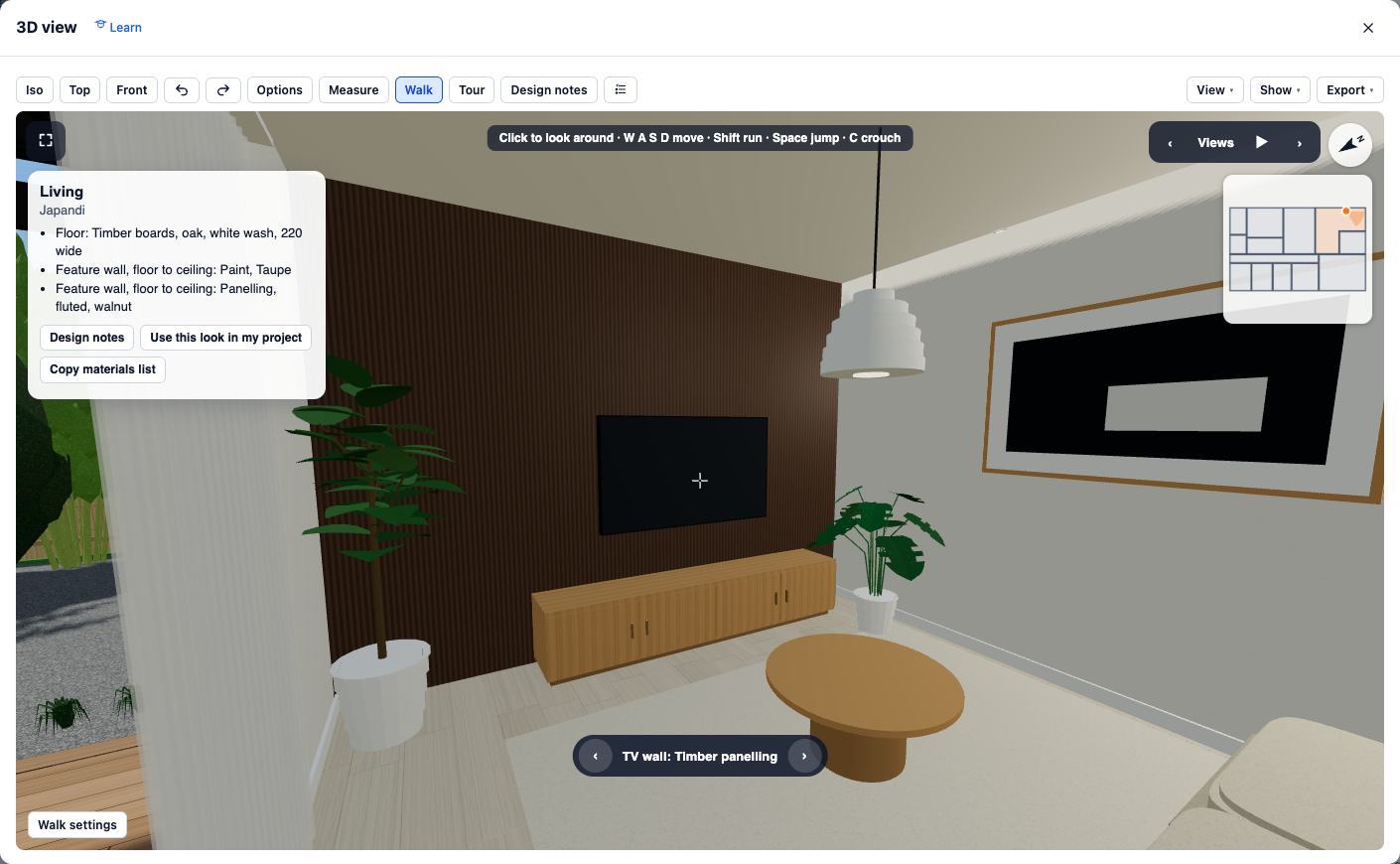
- Design options go with the view. In the example, “Living room: joinery wall” and “Living room: joinery wall, option B” stand in the same place, one with the open shelves and one with the timber panelling.
Starting views and what they see
In Share, under Starting view, choose where the next person or link starts: the whole project, where you are looking now, some rooms, the 3D model, a saved view, a design option set or a document. Add a note for them, then Preview what they see.
Limit what they see or change narrows it further: before and after, only some rooms (the rest are faded), only some layers, design options or documents, and which saved views are in their Views list (all, some or none). They can still choose See everything. Change any of it later for one person or link with Change start.
Links to a view
Each link in Share has a Link to a view list: pick a saved view and the copied link opens straight at it. In the Views list, Copy link to this view does the same for people already invited. A link to a view never gives access by itself; it works for people the project is shared with, or with a view link you made. The buttons above work the same way on the example:
app.plotlay.io/?example=showroom&view=living-joinery
app.plotlay.io/?example=showroom&view=living-joinery-b
app.plotlay.io/?example=showroom&as=client&view=from-the-street
app.plotlay.io/?example=showroom&as=client&tour=1
On a phone
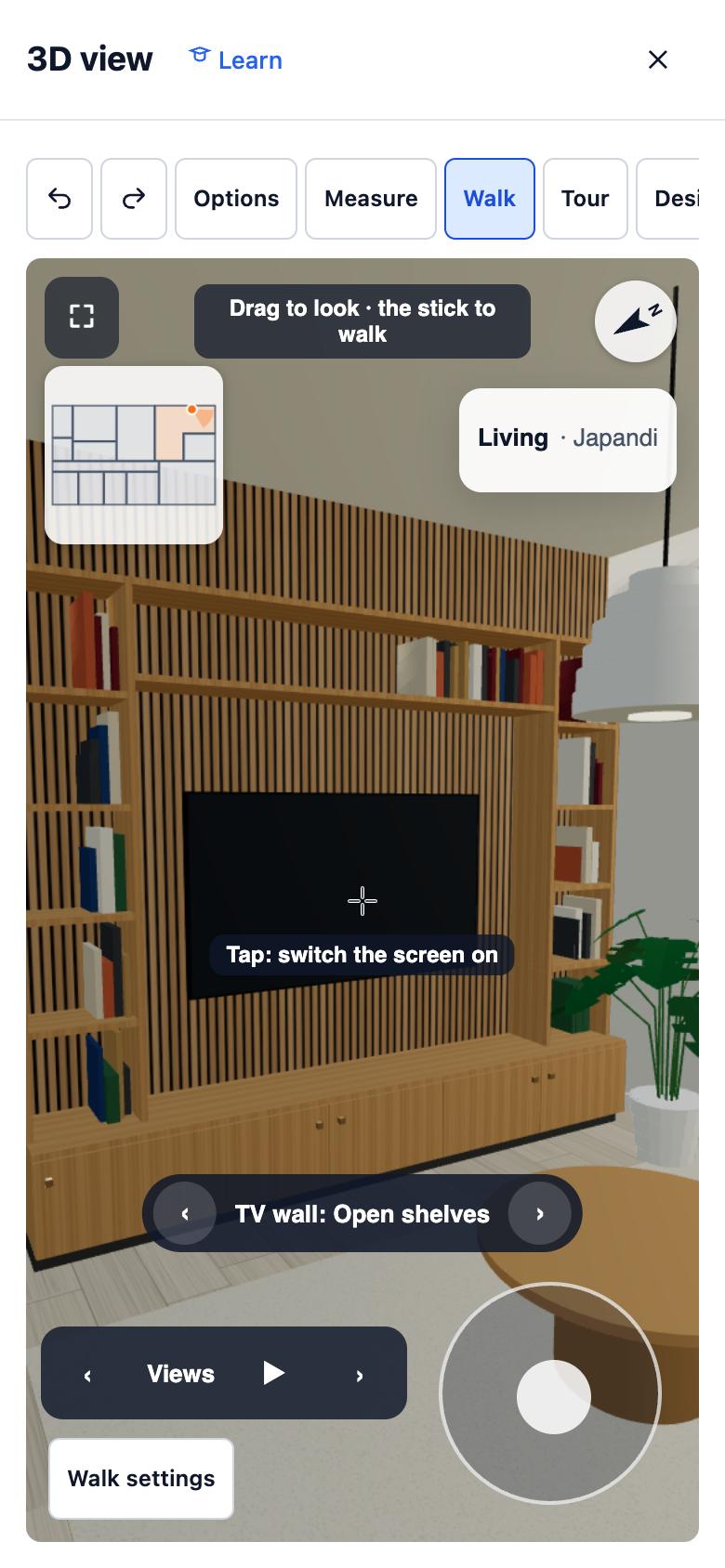
A link opens in the phone’s browser, with nothing to install. Drag to look round and use the stick to walk. The Views bar steps through the saved views or plays them, and the arrows on the option label switch between the two TV walls.
In the client view the panel sits along the bottom of the screen, over the plan; scroll it for the views, the design options and the documents.