
Learn · AI connector · Lesson 3 of 4
What the connector can and can’t do
You willKnow which jobs the connector does on its own and which need the app open.
Time3 min
You needNothing: this lesson is about the connector, shown in the app.
Try it in Plotlay → Opens an example project with this lesson beside it. Nothing to install.
Steps
- It can make projects, rooms, walls, doors and windows, place Library items, set finishes, roofs and site facts, check compliance, and export plans, elevations, room packs and drawing sets as PDF, plus GIS data.
- It acts as you: it sees and changes only the projects you can. It can also invite guests and make view links, as Share does.
- Drawings from PDF pages, DXF and SVG files are read in the app: open the project and choose Add overlay (Overlay on narrower screens) in the top bar.
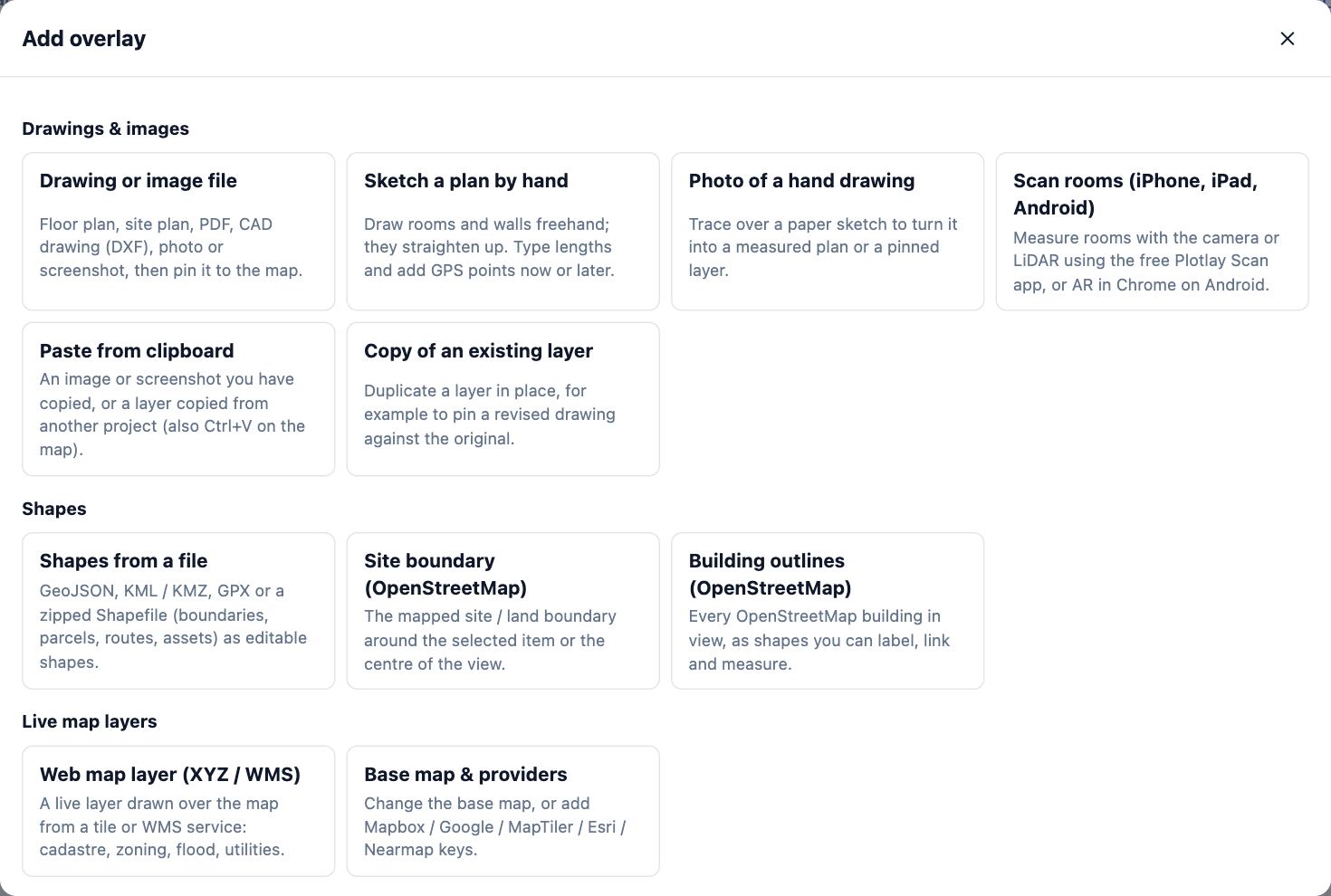
- 3D pictures and models, and map images, are made in the app: 3D, then Export in the 3D view.
- It can’t stand on site. It asks someone for GPS points or a scan, and applies what comes back; in the app those requests are under Capture.
- It undoes its own changes for 7 days. Changes made in the app go back in the app, with Undo or History.
Tips
- When a job needs the app, the connector says so and gives you the project link.
- Ask it what it found: it lists what is not measured yet, rather than guessing.
Common mistakes
- Sending it a PDF of a floor plan to trace: add the PDF in the app with Add overlay, then ask it to work on the pinned drawing.
- Expecting it to see your screen: it reads the project, not what is open in your browser.
Related lessons
Ask the connector for plansWrite requests the connector carries out well, then check and adjust its work in the app.4 minGive the connector files to importGet a spreadsheet, map data, a picture, a photo or a scan into a project through the connector.3 minPin a plan or drawing to the mapLine a site plan, floor plan or PDF up on the aerial by matching two or three points.5 min
Steps checked in the app on 14 October 2026.