
Learn · AI connector · Lesson 1 of 4
Connect Claude or another AI agent
You willLet Claude, or any agent that speaks MCP, work in your Plotlay projects as you, and disconnect it when you like.
Time4 min
You needA Plotlay account, and Claude.ai, Claude Code or another MCP client. The steps inside Claude happen in Claude, not Plotlay.
Try it in Plotlay → Opens Plotlay with this lesson beside it. Nothing to install.
Steps
- In Claude.ai, open Settings, then Connectors, then Add custom connector. Name it Plotlay and give the URL https://app.plotlay.io/mcp.
- Choose Connect. Plotlay opens on Connect an AI agent; sign in if it asks.
- Read who is asking and what it may do, then choose Allow Claude. Deny sends you back with nothing connected.
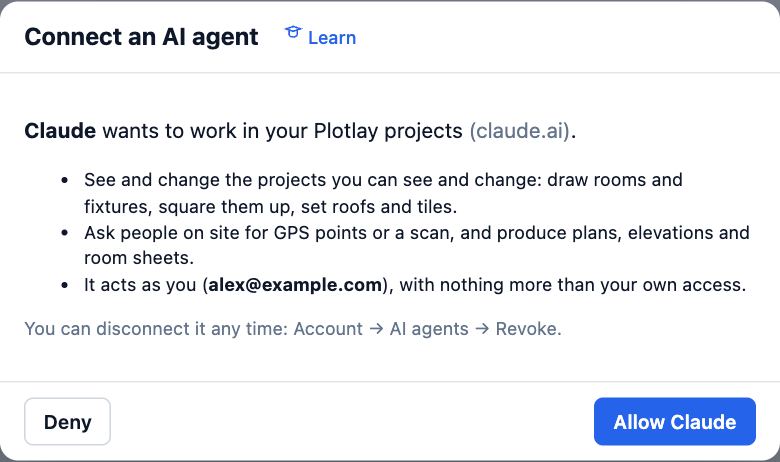
- For Claude Code and other agents: in Plotlay choose Account, then under AI agents choose + New agent key, name it and copy the key and the command Plotlay shows. The key is shown once.
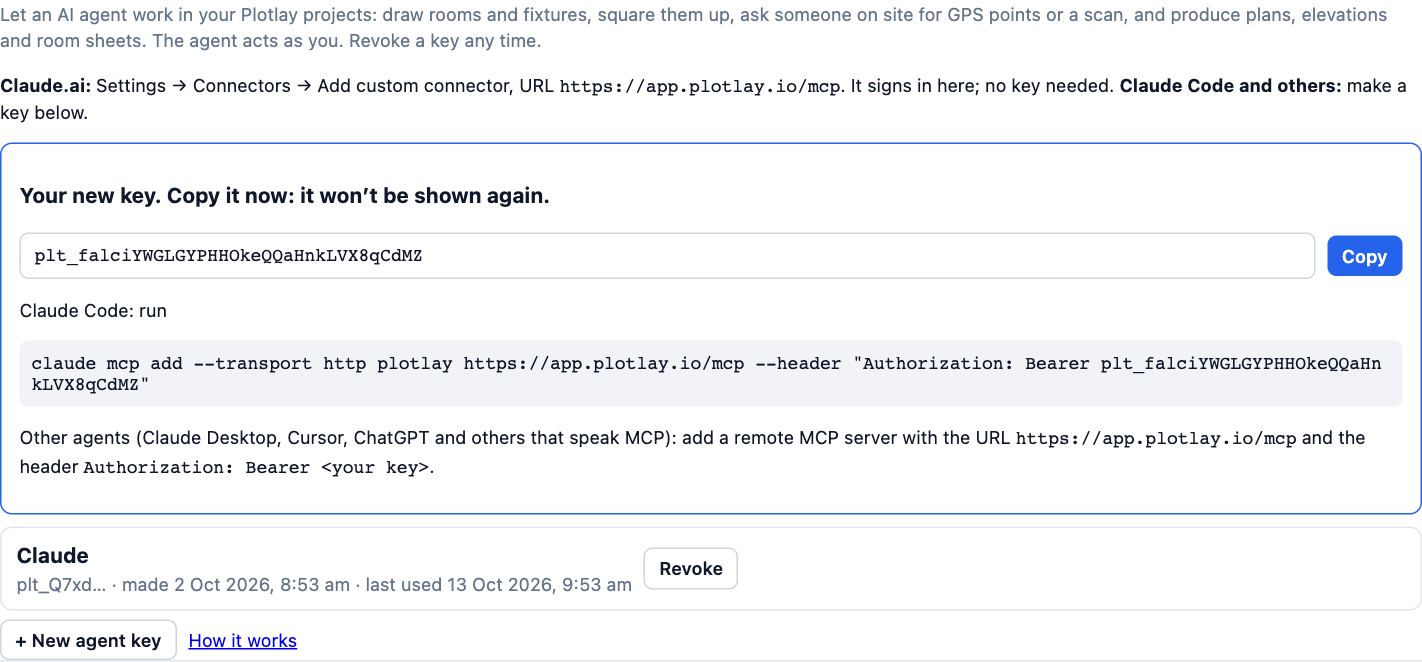
- To disconnect any of them: Account, then AI agents, then Revoke beside it. It stops working straight away.
Tips
- Make one key per agent or computer, so you can revoke one without the others.
- Plotlay keeps only a fingerprint of each key. Lost it? Revoke it and make a new one.
Common mistakes
- Pasting the app address (app.plotlay.io) as the connector URL: it is https://app.plotlay.io/mcp.
- Sharing a key in a chat or a shared file: anyone with it acts as you. Revoke it if it leaks.
Related lessons
Ask the connector for plansWrite requests the connector carries out well, then check and adjust its work in the app.4 minWhat the connector can and can’t doKnow which jobs the connector does on its own and which need the app open.3 minKeep sharing under controlLimit what people see, end access when a job is done, and see who has been in.3 min
Steps checked in the app on 14 October 2026.